Campaigns
What it does
Campaigns emails your customers. Write one yourself, start from a template, or use one of the campaigns suggested for you each week.
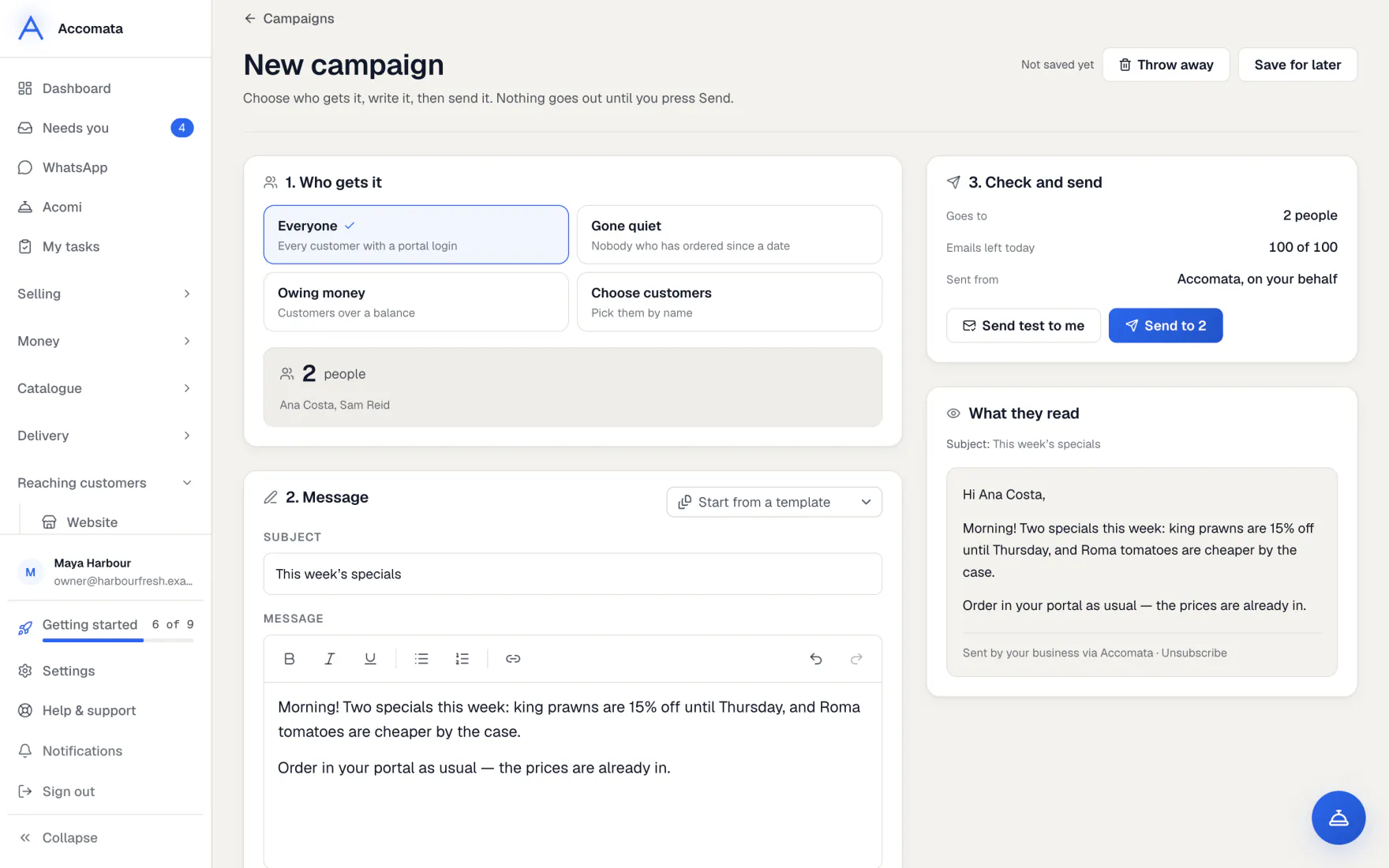
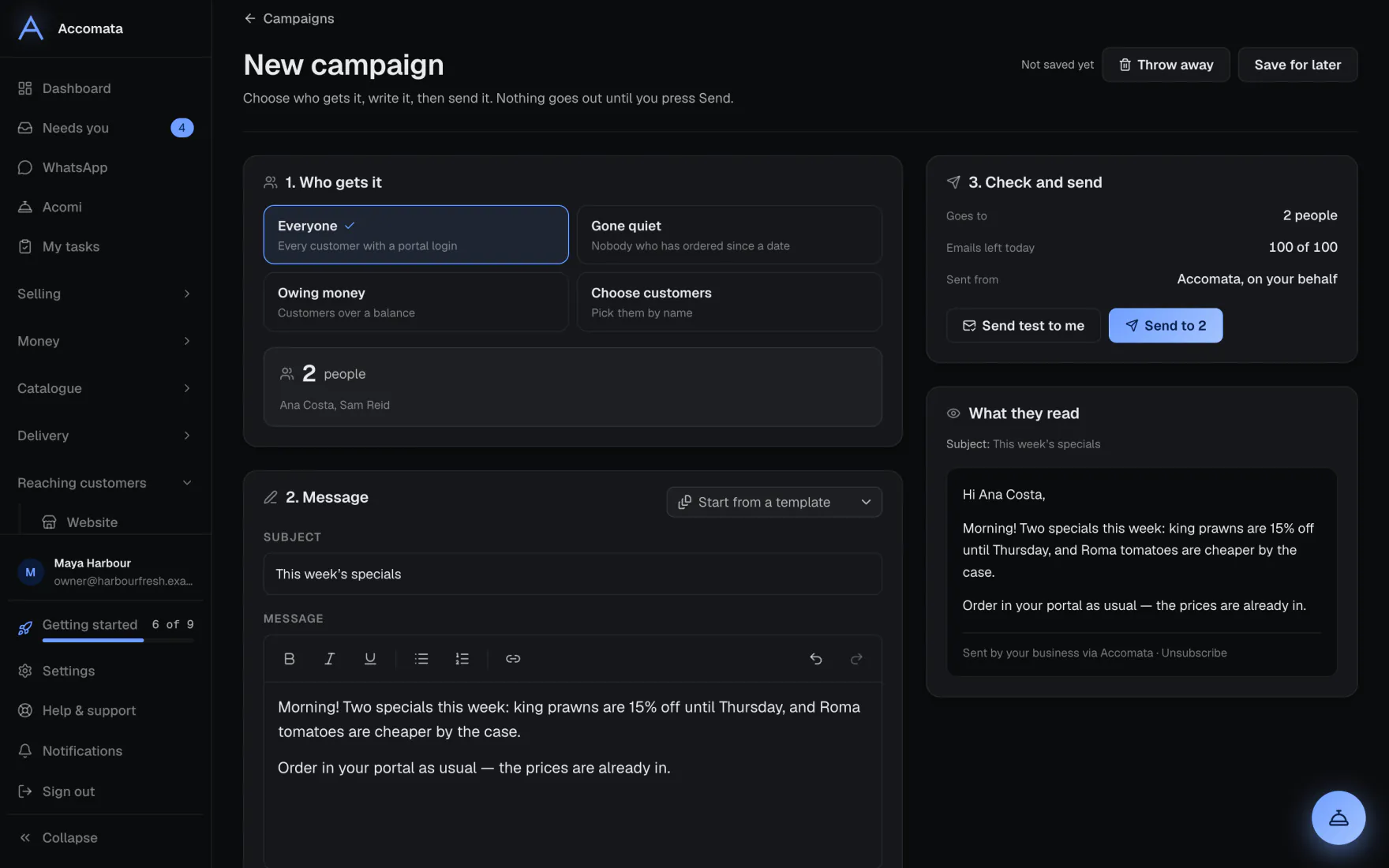
You see exactly what customers will read while you write. Customers who unsubscribed are never emailed.
How to do it
Write and send a campaign
- Open Campaigns and press New campaign, or open a suggestion or template.
- Who gets it: pick everyone, customers with a portal login, customers who have gone quiet or owe money, or pick them by name.
- Message: write the subject and the email. Bold, lists and links work.
- Press Send test to me to see it in your inbox.
- Check and send: look it over, then press Send now.
It saves as you go
Once saved, a campaign saves itself after each change. Press Save for later to come back to it under Not sent yet.
See how it went
- Open the Sent tab.
- Press a campaign to see who it went to, who opened it and who clicked.
What if…
What if customer emails are off?
Campaigns can’t be sent. Turn them on in Settings → Messages → Email your customers.
What if you have used today’s emails?
The editor says how many are left today before you send.
What if Acomi writes a campaign for you?
It shows a card first. After you approve, you have at least 15 minutes to cancel before it goes, and you get a notice with a Cancel link.
Common questions
Can I save my own template?
Yes. Save a campaign as your own template, and find it under Templates.
Do campaigns come from my email address?
Once your mailbox is connected, yes. Until then they come from ours with your business name.
Who can send campaigns?
People whose role can send campaigns. Others can write one, and someone who can send presses Send.
Still stuck?
A person at Accomata reads every email and replies. Tell us what you were doing and what you saw.