The website editor
What it does
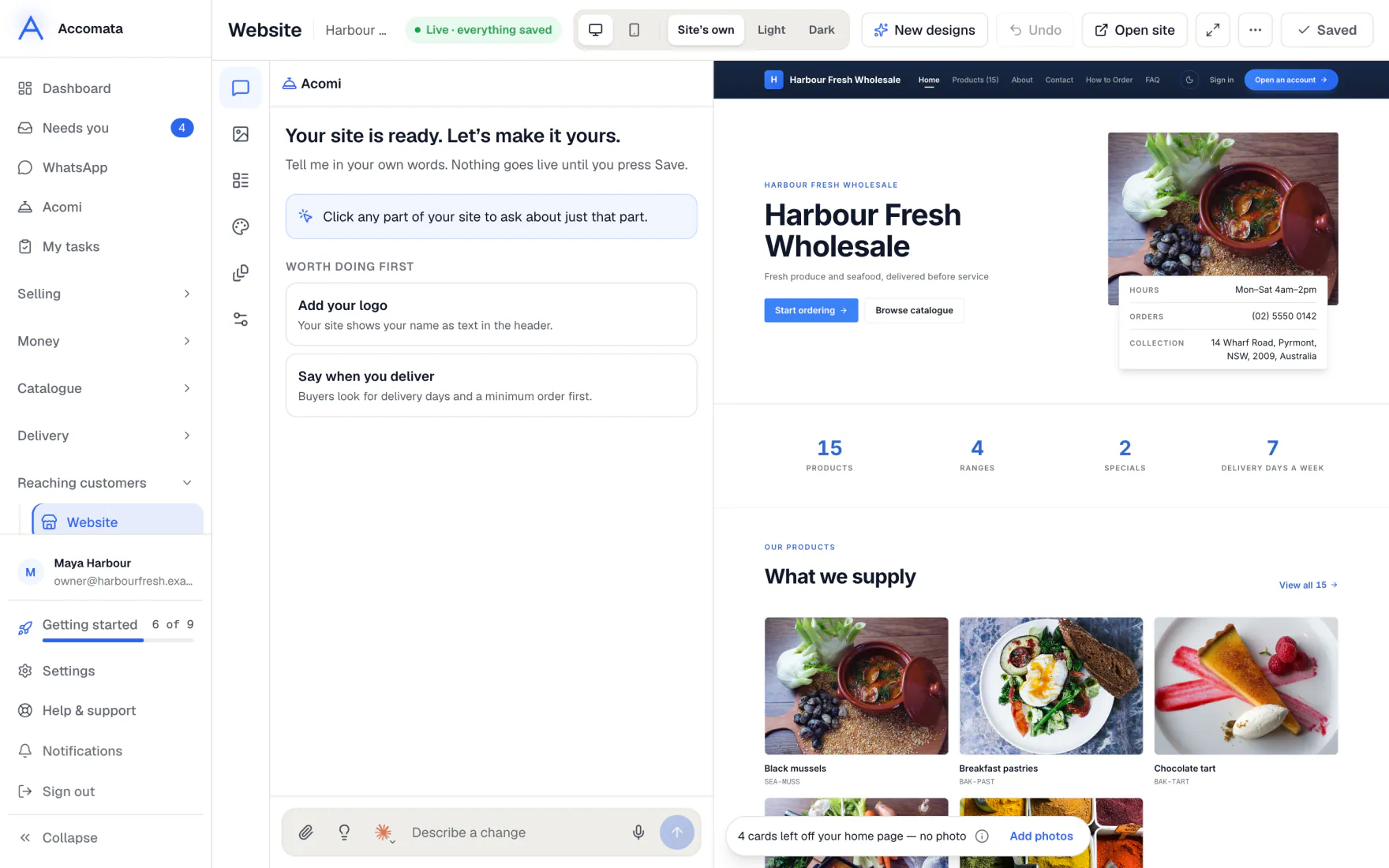
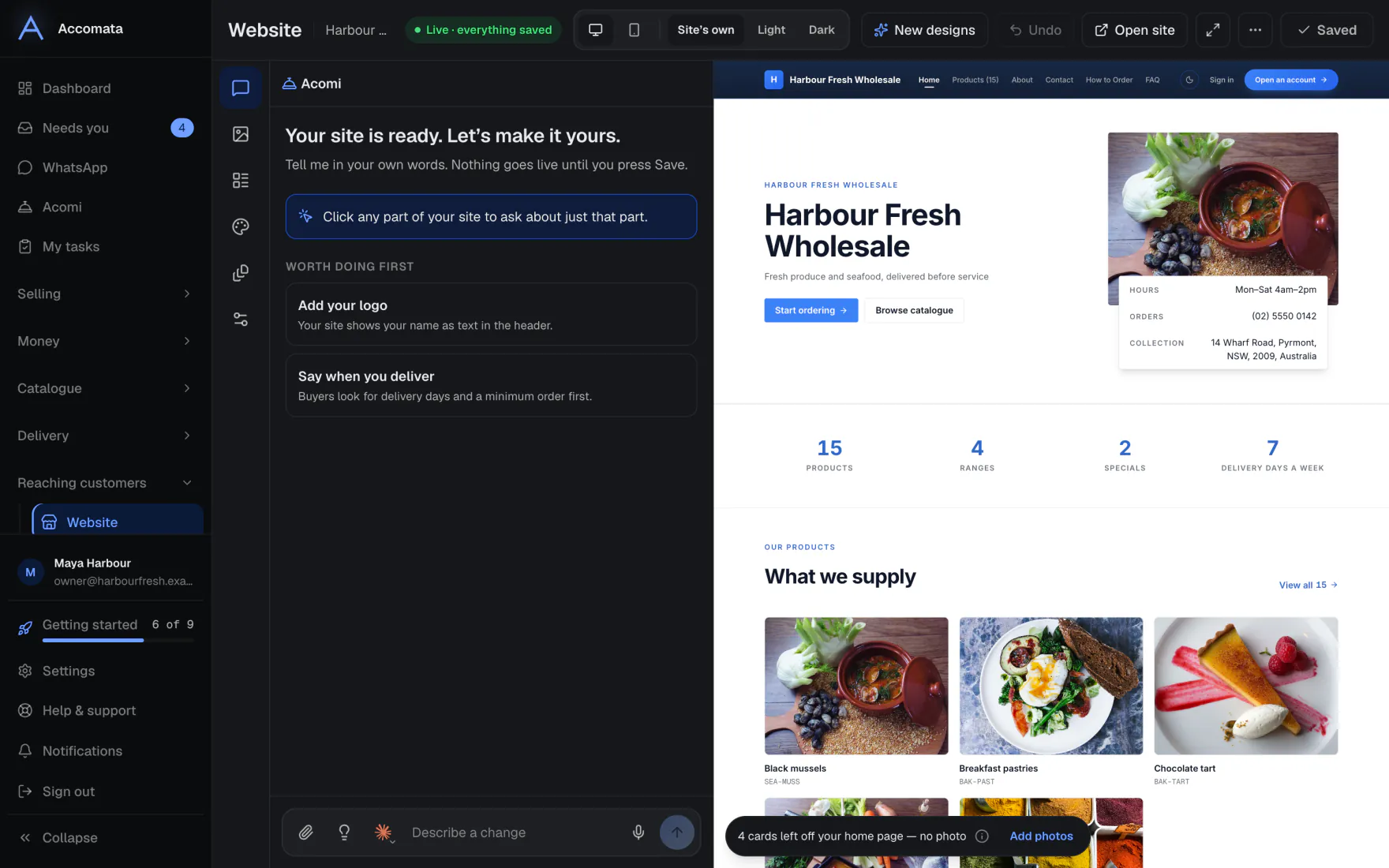
The editor shows your real site beside the website assistant. Ask for a change in plain words, or use the panels for photos, sections, your brand, pages and settings.
Changes stay in the editor until you press Save changes. After a visual change, the site is checked in light and dark for you.
How to do it
Change something
- Open Website. Your site is on the right.
- Point at a section, the header or the footer and press Ask about this.
- Type what you want, such as “make the heading shorter”.
- Watch the change appear on the site. Press Undo if you don’t like it.
- Press Save changes to put it on your live site.
Check it in light and dark
- After a change you see Checking how it looks…. You can carry on working.
- When it is fine, it says Looks right in light and dark, with two small pictures.
- If it finds a problem, it says what. Press Fix it to fix it, or Leave it.
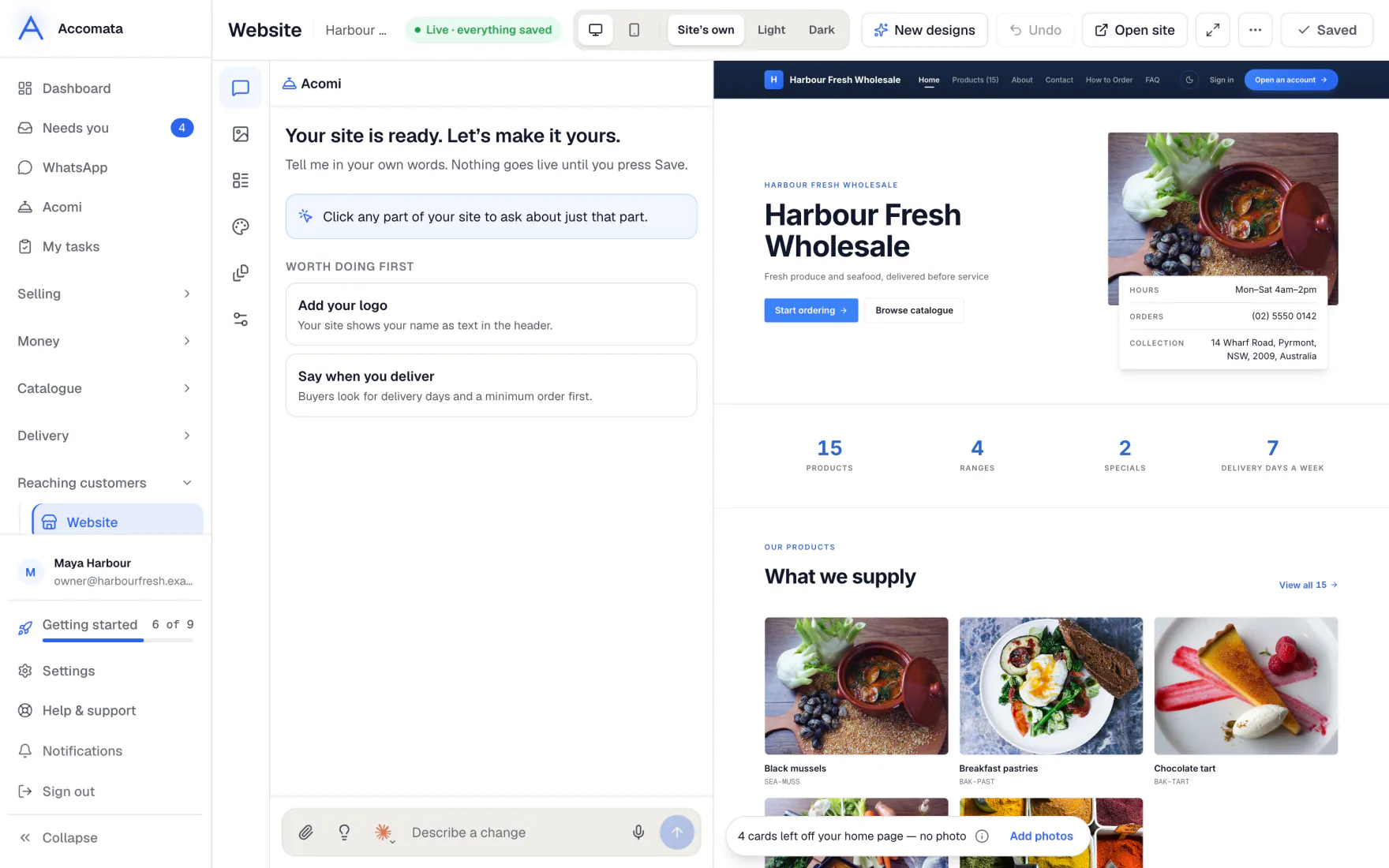
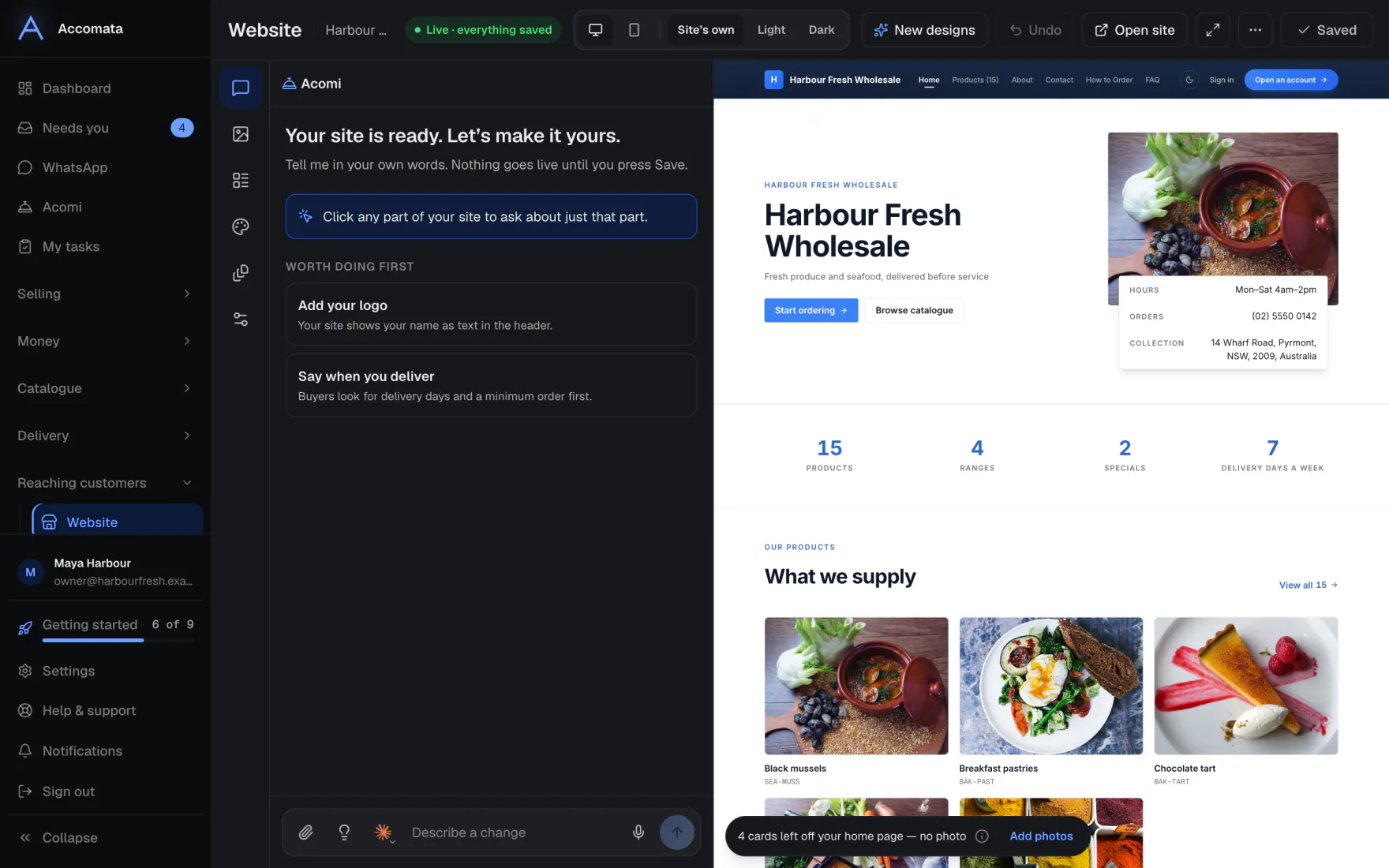
- Use Light and Dark in the top bar to look yourself.
Use your business address
- Open the editor’s Settings panel.
- It says Uses your business address. That address comes from Settings → Business.
- Press Change it in Settings to change it everywhere at once.
- Only if the website needs another address, switch on Address on your website and type it.
What if…
What if you want the site to stop showing?
Switch off Published in the editor’s Settings panel.
What if you want an older version back?
Open the ⋯ menu and press Earlier versions.
What if the assistant is switched off?
The chat says so, with a button to the exact switch in Settings → AI.
What if you uploaded new photos and the site looks old?
Press Refresh site in the Settings panel.
Common questions
Can I use my own logo, photos or a brochure?
Yes. Attach them in the chat. The assistant can set your logo, add or replace photos and write from a PDF.
Can I choose how much the site moves?
Yes. In the Brand panel, pick Still, Subtle or Lively. Visitors who ask for less motion always get a still site.
Does Undo survive a reload?
No. Undo keeps your last changes in this browser. After a reload, use ⋯ → Earlier versions instead.
Still stuck?
A person at Accomata reads every email and replies. Tell us what you were doing and what you saw.