Finding your way round
What it does
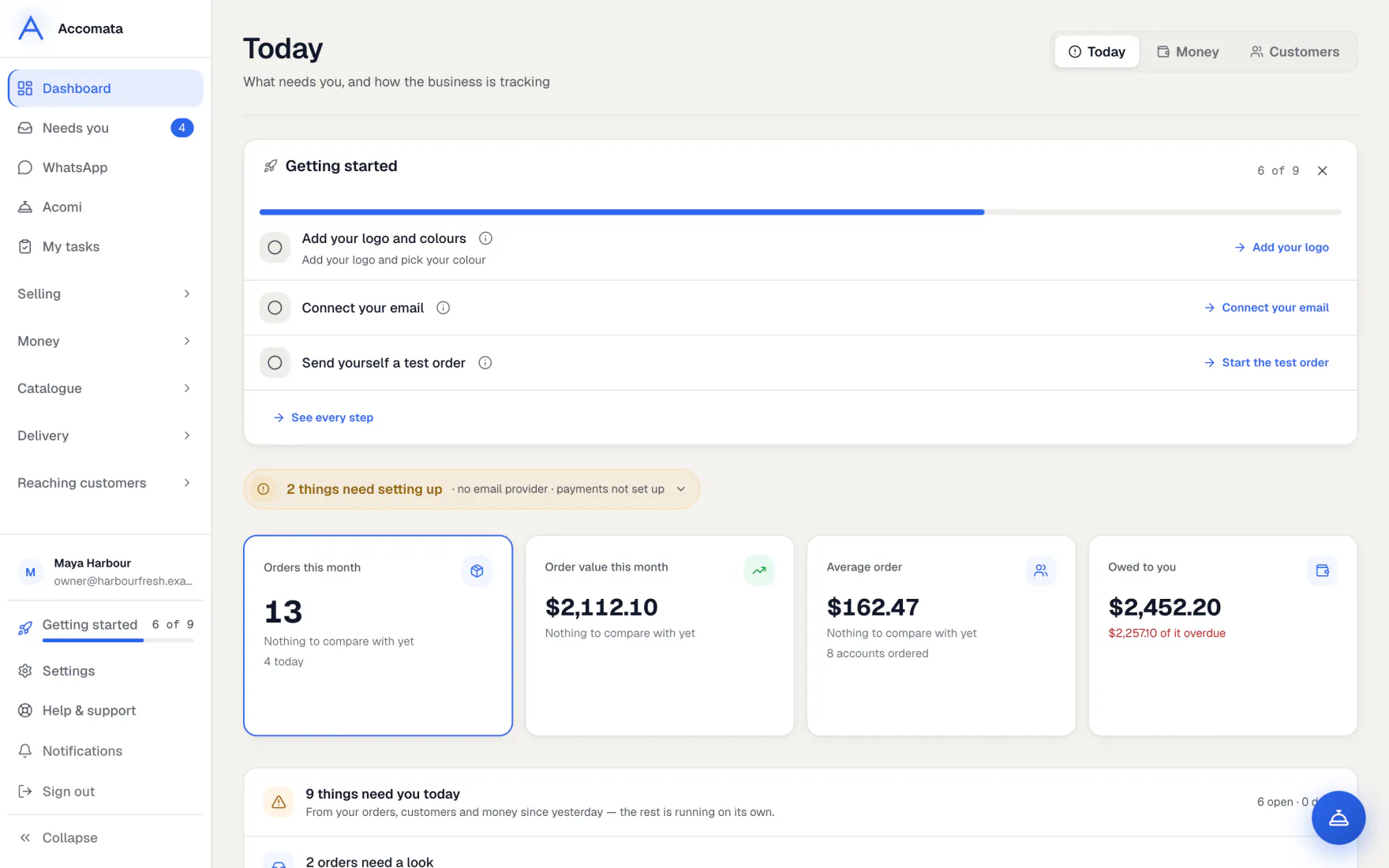
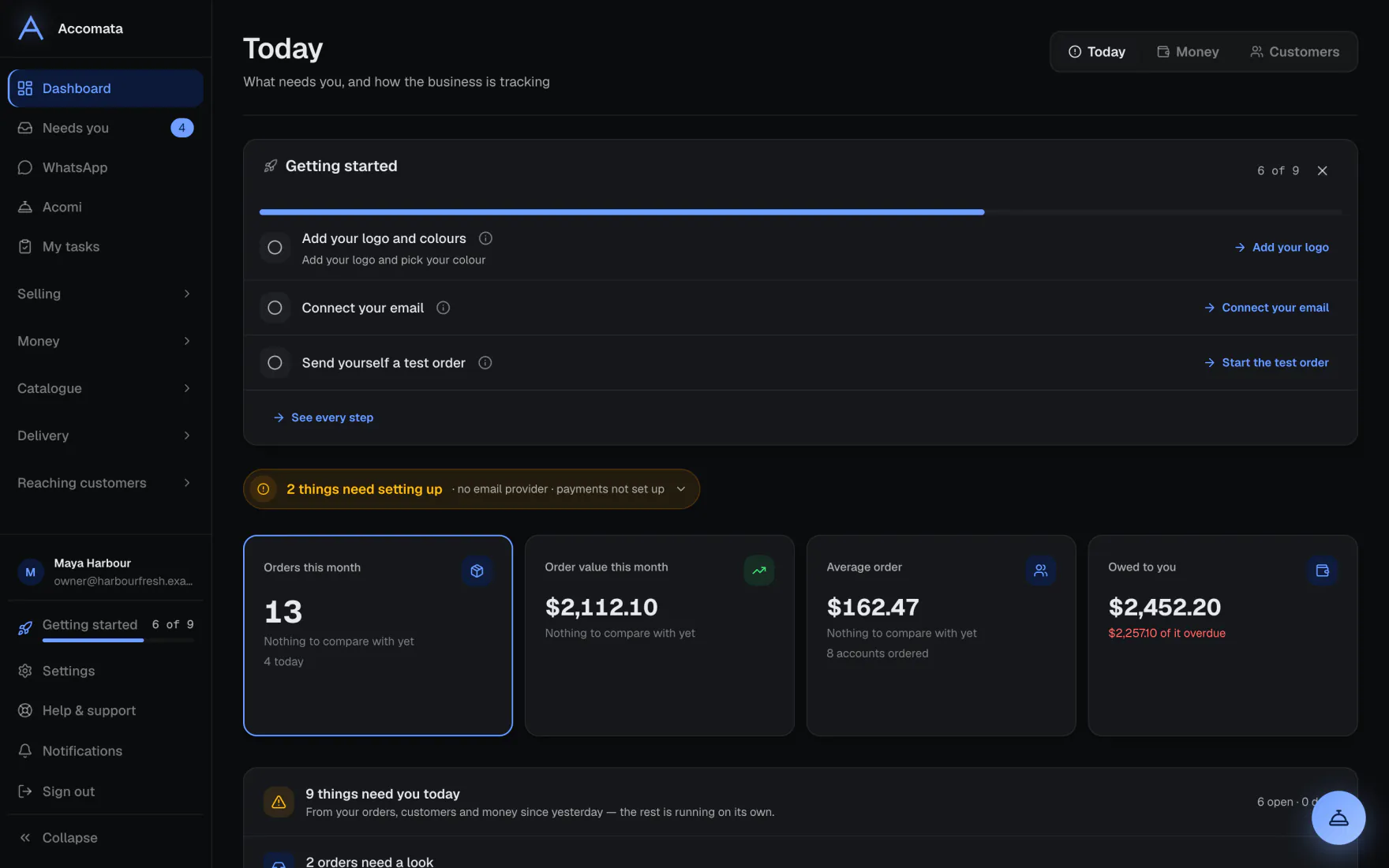
Your dashboard opens on Today: four figures, then a short brief of what needs you, each with the button that deals with it.
The sidebar holds every screen your role allows. It stays put while you move between pages, and each page shows its shape at once while its figures arrive.
How to do it
Start your day from Today
- Open Dashboard. The figures show today’s orders, their value and what you are owed.
- Read the brief under them. Each row says what needs you, such as orders to confirm or customers who usually order by now.
- Press the row’s button to act, or open the screen it links to.
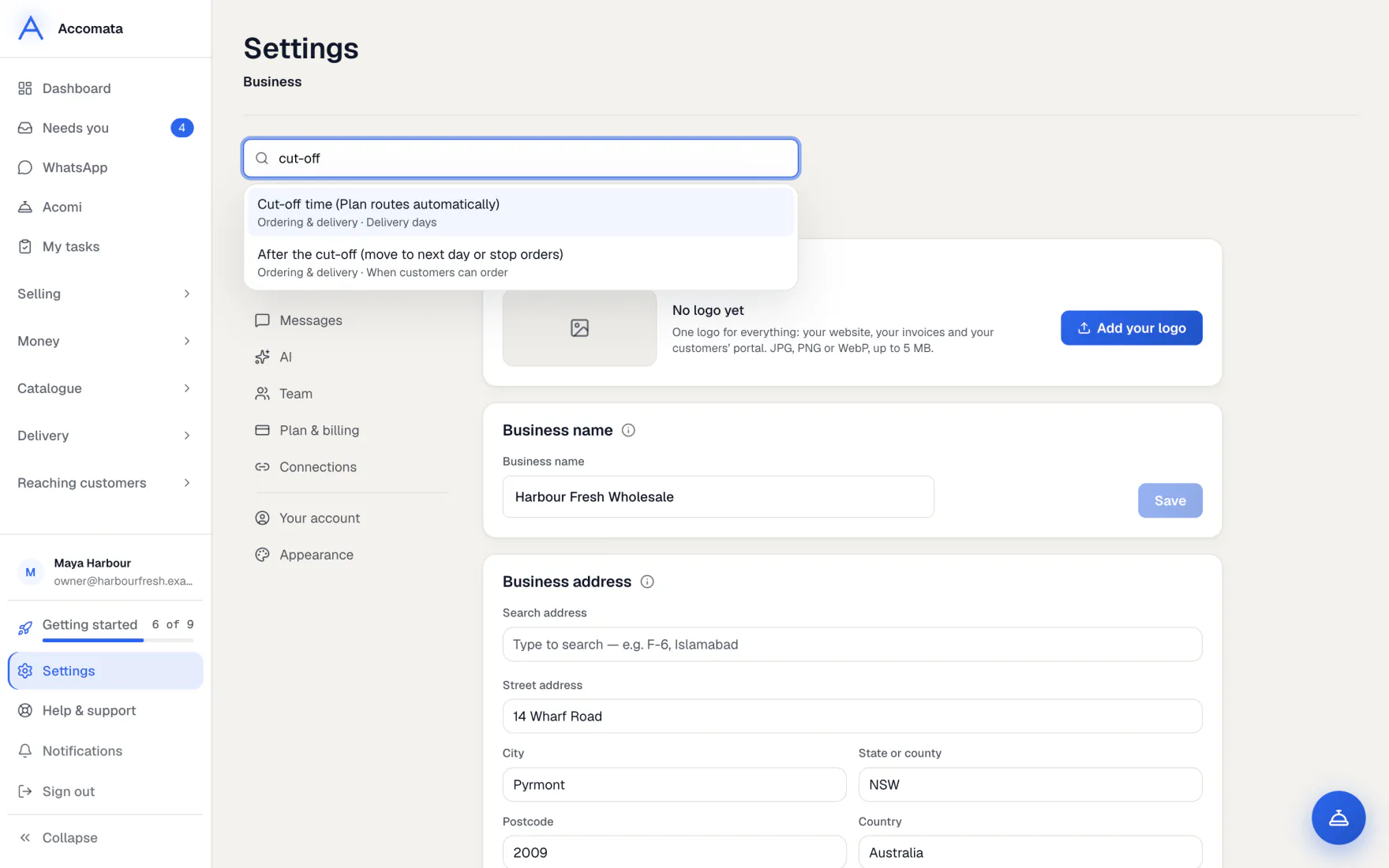
Find any setting
- Open Settings.
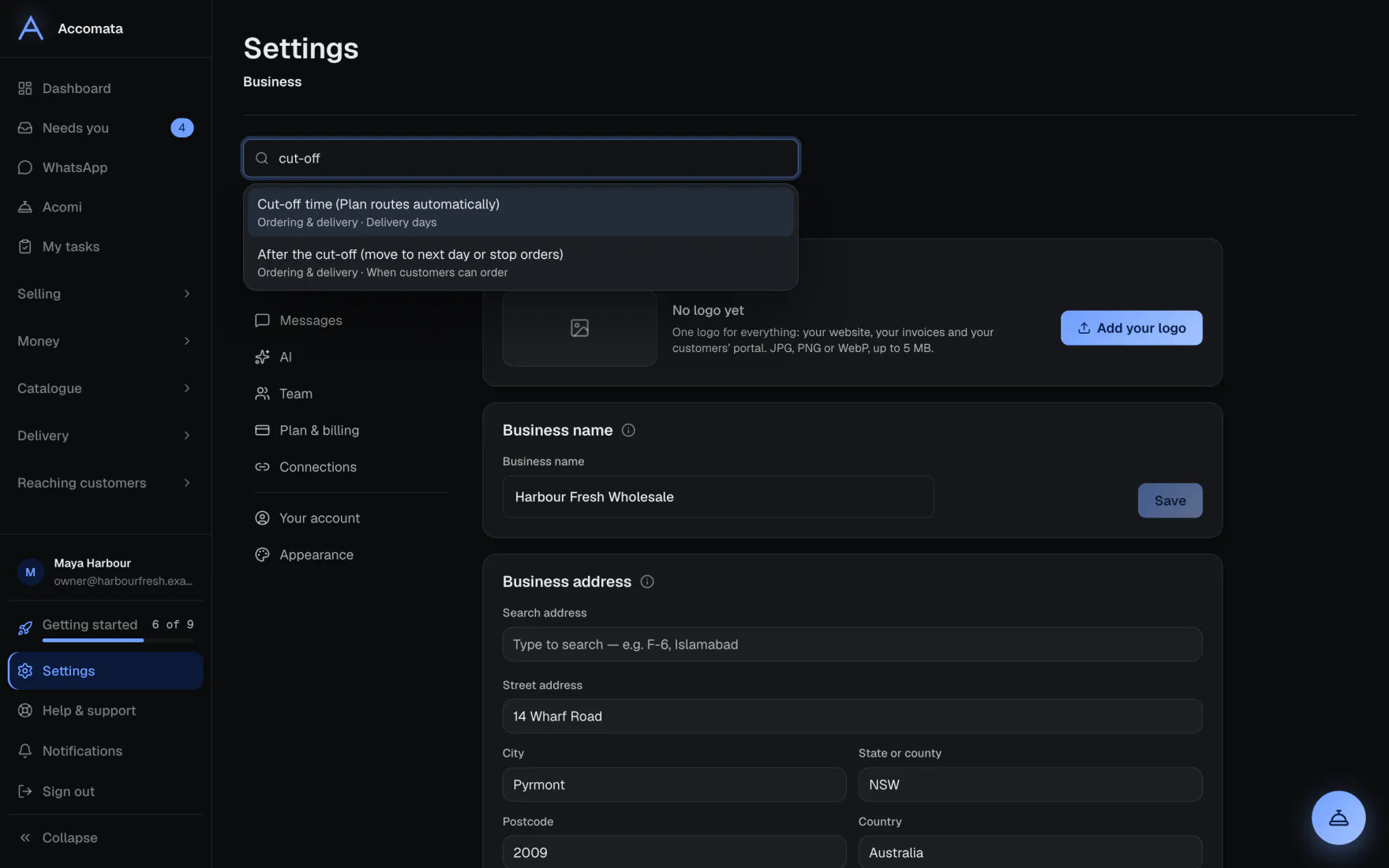
- Type what you want in Find a setting at the top, such as “cut-off” or “password”.
- Pick a result. Settings opens on that card and points it out.
Hide what you don’t use
- Open Settings → Business → Your modules.
- Switch off Delivery, Website or Campaigns.
- They leave the sidebar for everyone. Nothing is deleted, and you can switch them back on.
What if…
What if a page tip appears at the top of a screen?
It explains the screen once and offers its first step. Close it and it stays closed for you. Settings → Help & support → Show the tips again brings them back.
What if the connection is slow?
Screens keep what they already show. A small note says when things are taking longer than usual. Nothing reloads by itself when the connection comes back.
What if something is missing from your sidebar?
Your role may not include it, it may be switched off in Your modules, or you may have hidden it in Settings → Appearance.
Common questions
Why is signing in faster now?
You stay signed in for several days on the same browser. The app draws your sidebar and start page straight away, and goes to your dashboard without stopping on the QuickBooks screen once your data is in.
Can I start on a page other than the dashboard?
Yes. Pick your Start page in Settings → Appearance. See Your look and workflow.
What is the number next to Needs you?
It counts everything waiting for you: orders to look over, deliveries that slipped, invoices and Acomi’s cards. See Needs you.
Where do I find help inside the app?
Open Settings → Help & support, or Help & support in your account menu. It has these guides and a way to email us.
Still stuck?
A person at Accomata reads every email and replies. Tell us what you were doing and what you saw.