Purchasing from your suppliers
What it does
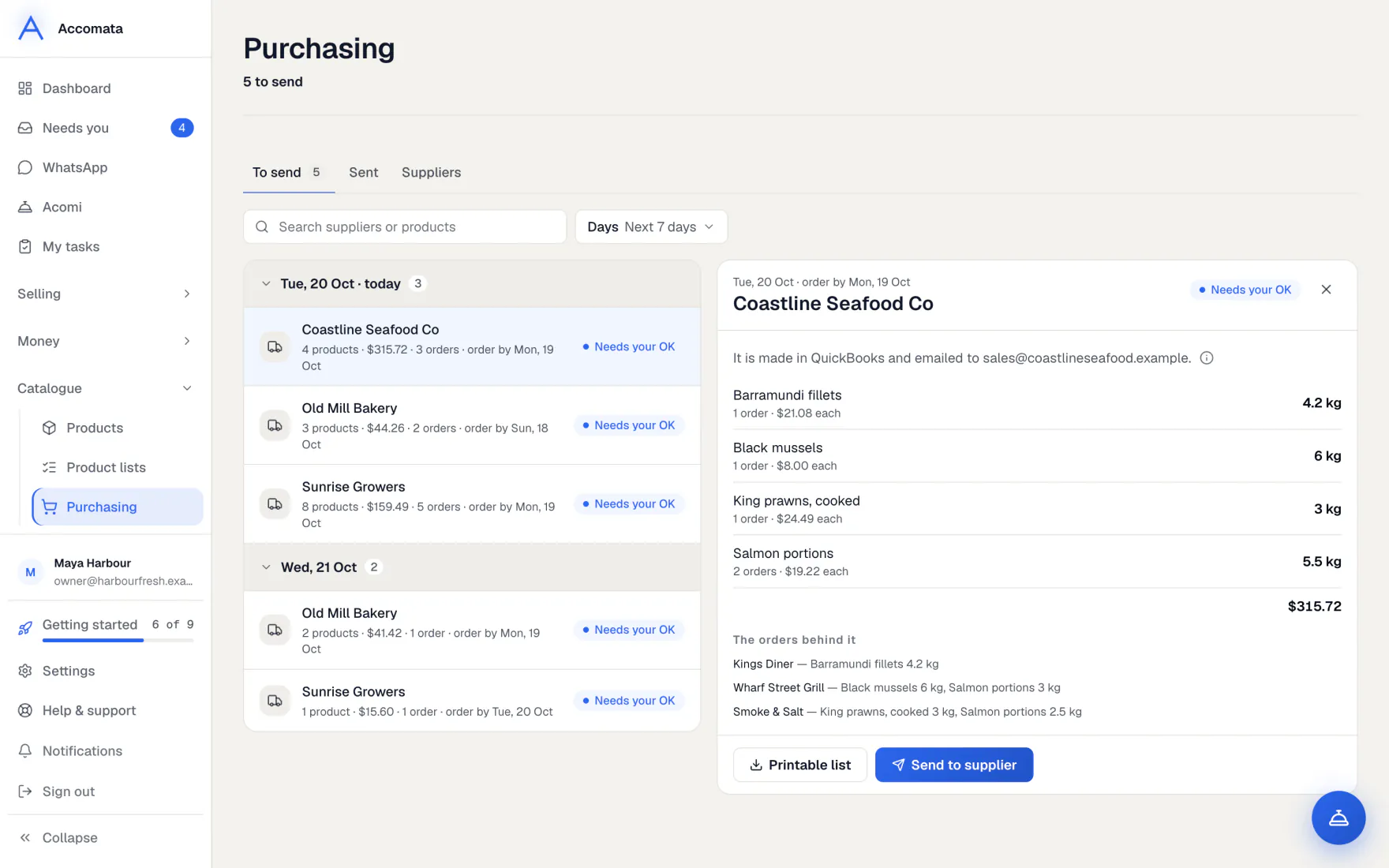
Purchasing works out what you need to buy from each supplier for the coming days’ orders. You send each supplier one purchase order. It is made in QuickBooks, emailed with a PDF, and kept here.
Purchasing is part of the Growth plan and up.
How to do it
Send a purchase order
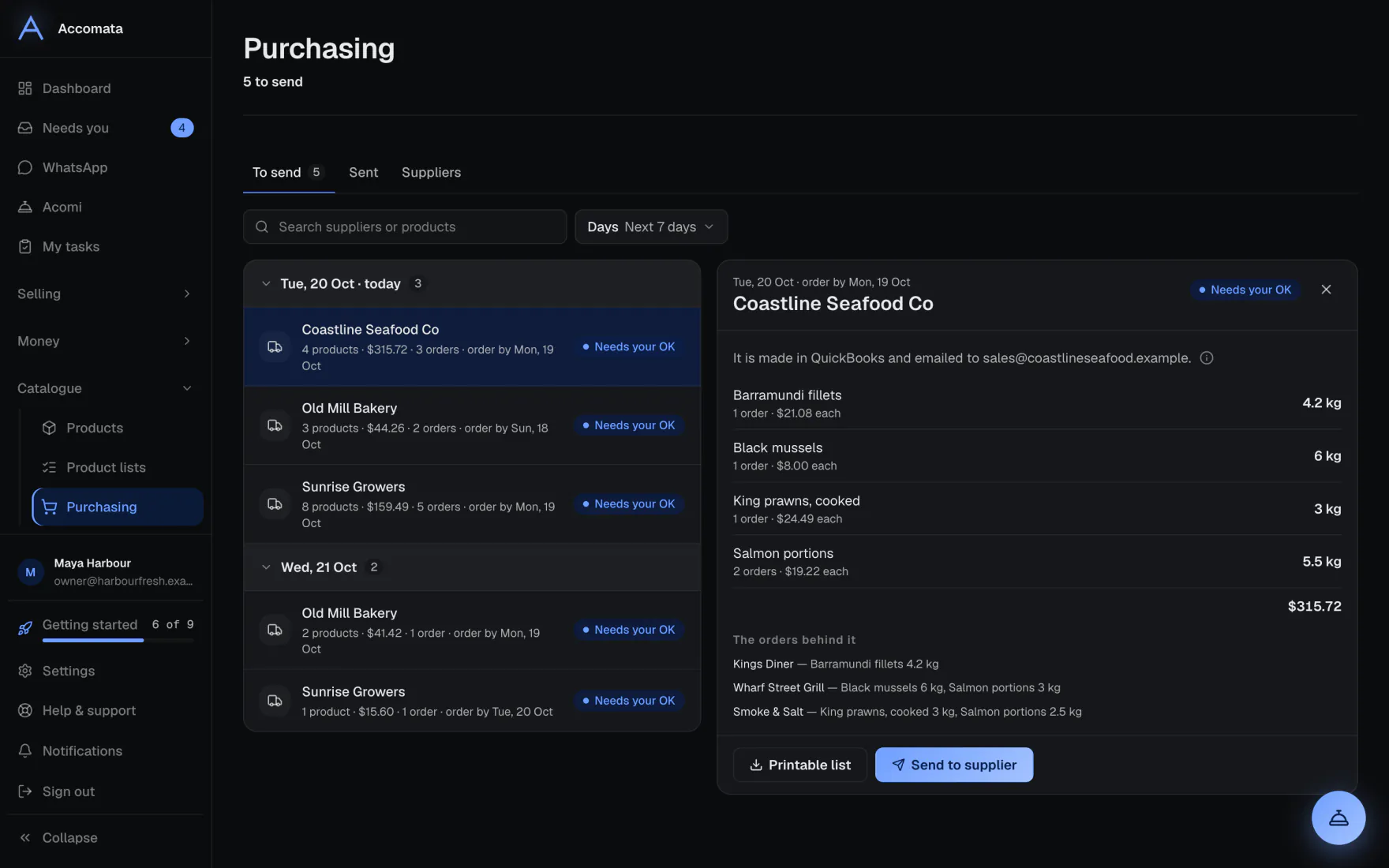
- Open Purchasing. To send lists each supplier and day with the products needed.
- Press a row to see the products, quantities, costs and the orders behind them.
- Press Send to supplier. It moves to Sent when it has gone.
Set a product’s supplier
- Open Products and use the Supplier column, or the product’s side panel.
- Pick the supplier. It is saved in QuickBooks as the product’s preferred supplier.
- Switch off On purchase orders for products you never reorder.
What if…
What if a row says No supplier?
Choose a supplier for each product right there, then send.
What if your QuickBooks plan has no purchase orders?
The page says so. After you change your QuickBooks plan, press I’ve changed my plan — try again.
What if a purchase order didn’t go?
It shows Didn’t go with the reason. Press Try again or Email again.
Common questions
Does this move any money?
No. A purchase order is a request to your supplier. You pay them as you always do.
Can I print a list before sending?
Yes. Open the row and use the printable list.
Where do supplier emails come from?
From QuickBooks, unless you set a separate email for purchase orders on the supplier’s panel.
Still stuck?
A person at Accomata reads every email and replies. Tell us what you were doing and what you saw.