Getting started
What it does
Accomata runs your orders, deliveries and getting paid on top of your QuickBooks Online. You connect QuickBooks once. Your customers and products come across, and the app keeps them up to date.
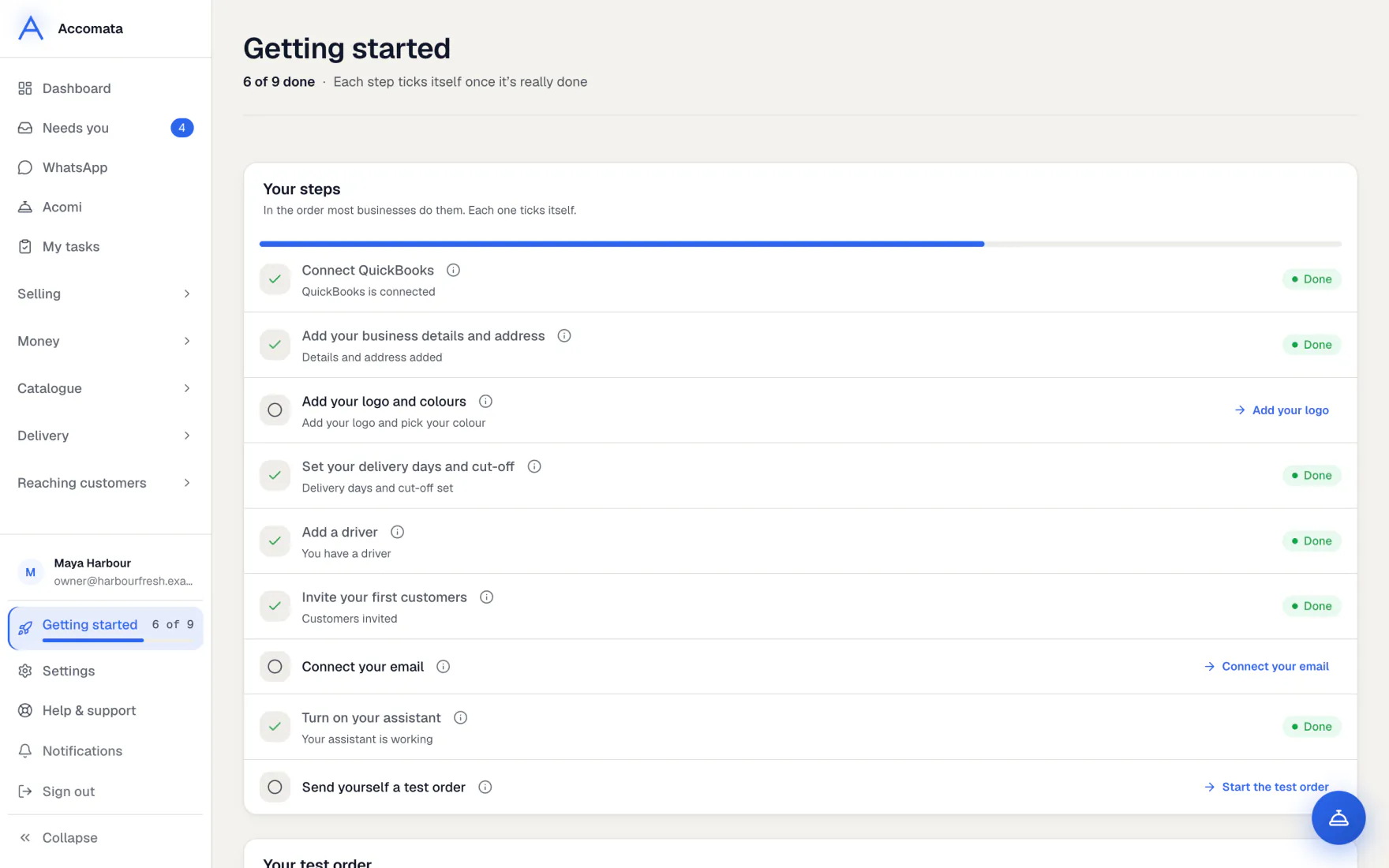
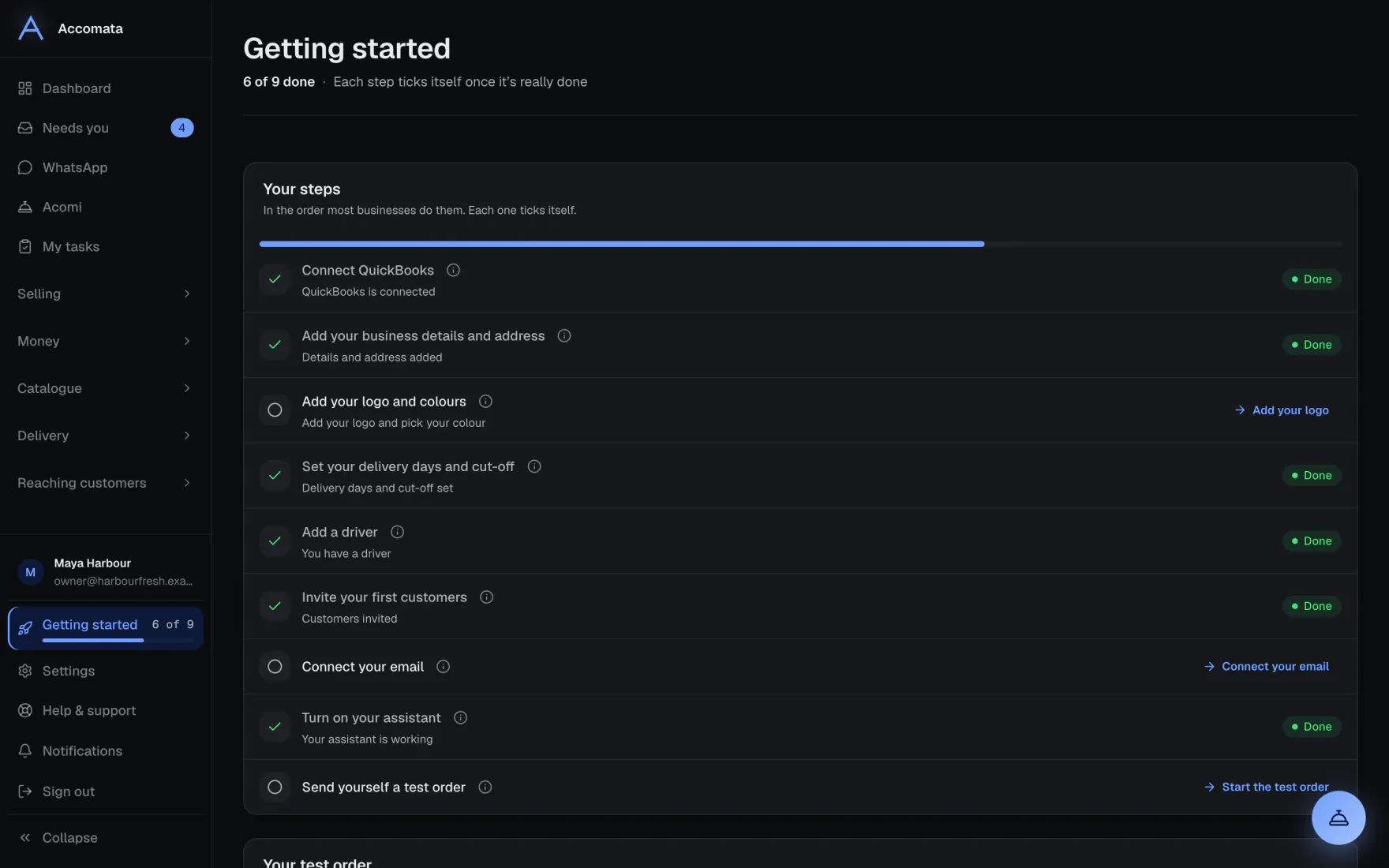
A Getting started checklist then walks you through the rest, one step at a time. Each tick comes from what you have really done, so it never ticks itself.
How to do it
Connect QuickBooks
- Sign up with your work email, or sign in if you already have an account.
- Press Connect QuickBooks and sign in to QuickBooks Online with the company you use every day.
- Approve the connection. You come back to Accomata on its own.
- Choose which kinds of items to bring in, or press Keep everything for now.
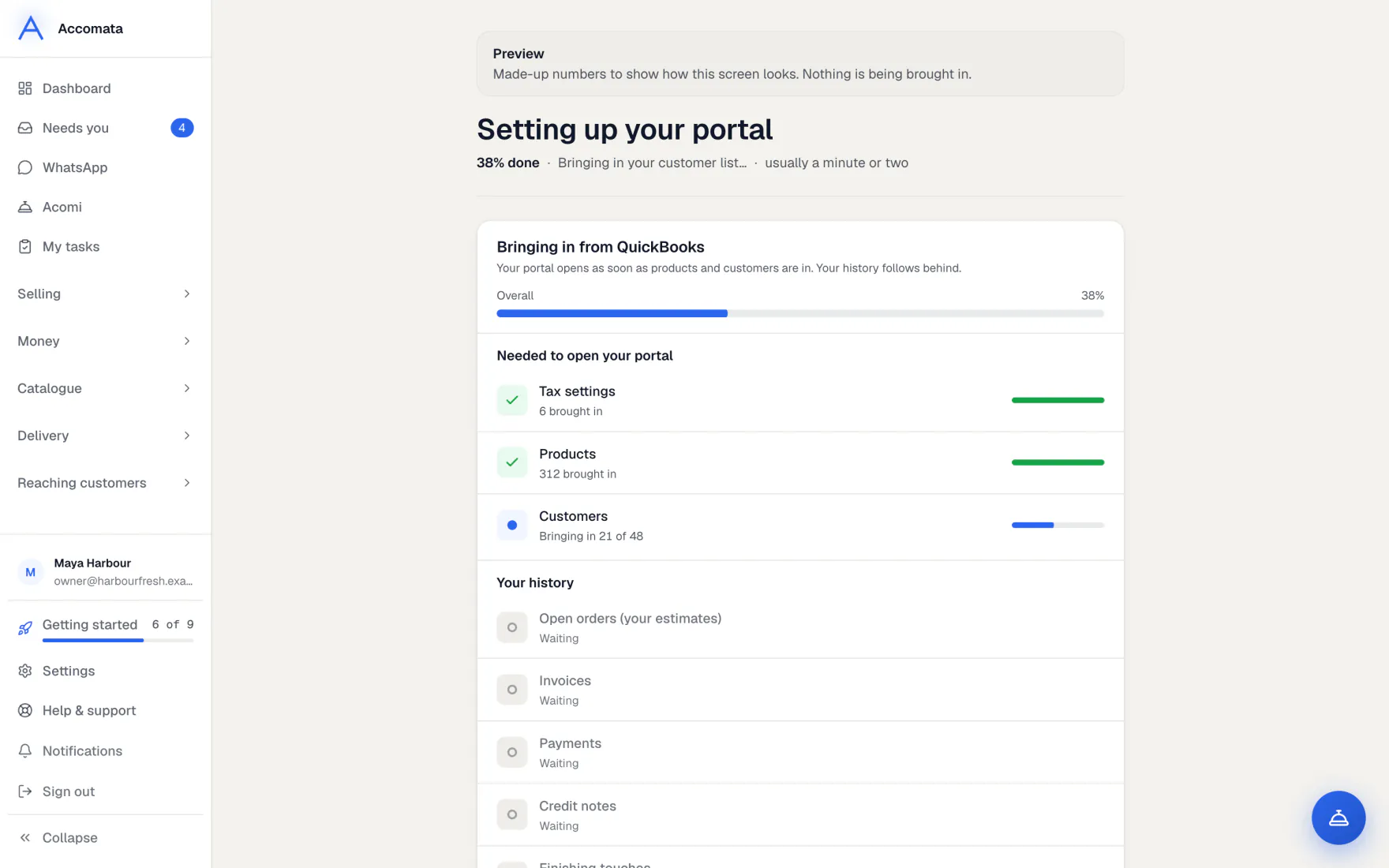
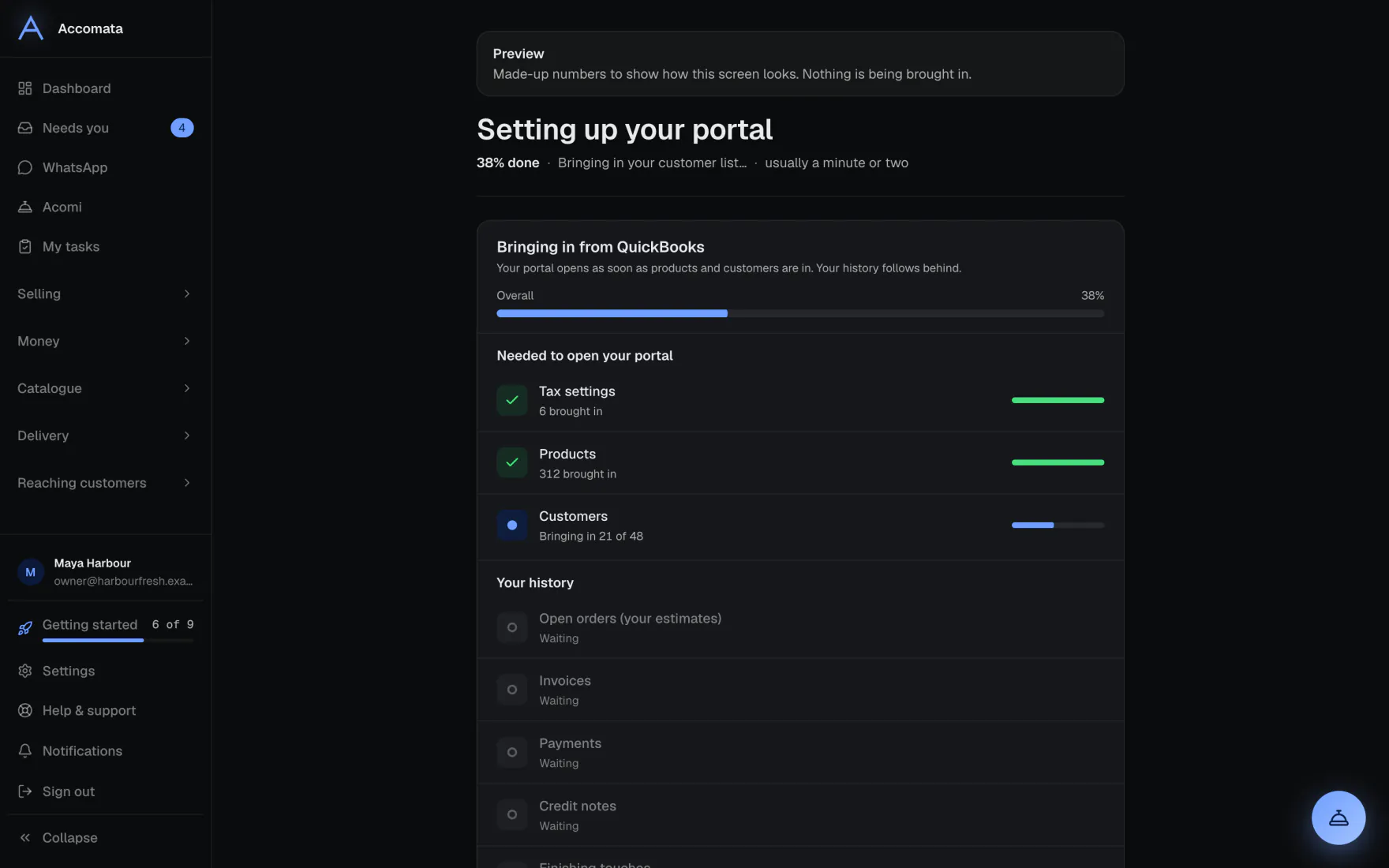
- Wait while we bring in your QuickBooks data. The bar shows each step. When it says Your portal is ready, your dashboard opens.
How long does it take?
Most businesses are ready in a few minutes. A long history takes longer. You can keep working while the older records arrive.
Follow the checklist
The checklist has nine steps. Steps that don’t apply to you, such as delivery when you switch it off, drop out of the count.
- Open Getting started from the bottom of the sidebar, or from the card on your dashboard.
- Connect QuickBooks.
- Add your business details and address in Settings → Business.
- Add your logo and pick your colour.
- Set your delivery days and cut-off in Settings → Ordering & delivery.
- Add a driver, then invite your first customers.
- Connect your email and say hello to Acomi.
- Send yourself a test order and follow it all the way through.
Send yourself a test order
The test order is a real order. Use a customer in QuickBooks that is really you, so nothing reaches a real customer.
- On Getting started, pick your test customer.
- Place the order from their customer login, or type it in with New order.
- Confirm it, pack it and put it on a route.
- Make the invoice. It lands in QuickBooks like any other.
Why a real order?
We never make fake data. A fake order would end up in your real QuickBooks. A test customer that is you keeps it safe.
What if…
What if the app asks for your timezone?
Pick the one your business works in. “Today”, cut-offs, delivery days and reminders all follow it. You can change it in Settings → Business → Timezone.
What if you want to hide the checklist for a while?
Press Hide for now. It comes back from Getting started in the sidebar, or from Settings → Help & support.
What if a step says it is blocked?
It names what is in the way, such as QuickBooks not being connected, with one button that fixes it.
Common questions
Do I need QuickBooks Online?
Yes. Accomata works with QuickBooks Online. Your books stay in QuickBooks, and the app does the work around them.
Can my staff see the checklist?
No. The checklist is for the owner only. Staff see the screens their role allows.
Does anything happen to my customers when I connect?
No. Nobody is emailed or invited until you choose to. Customer emails stay off until you switch them on in Settings → Messages → Email your customers.
Can I come back to the checklist later?
Yes. It stays in the sidebar until every step is done, then it hides itself.
Still stuck?
A person at Accomata reads every email and replies. Tell us what you were doing and what you saw.