Your team and permissions
What it does
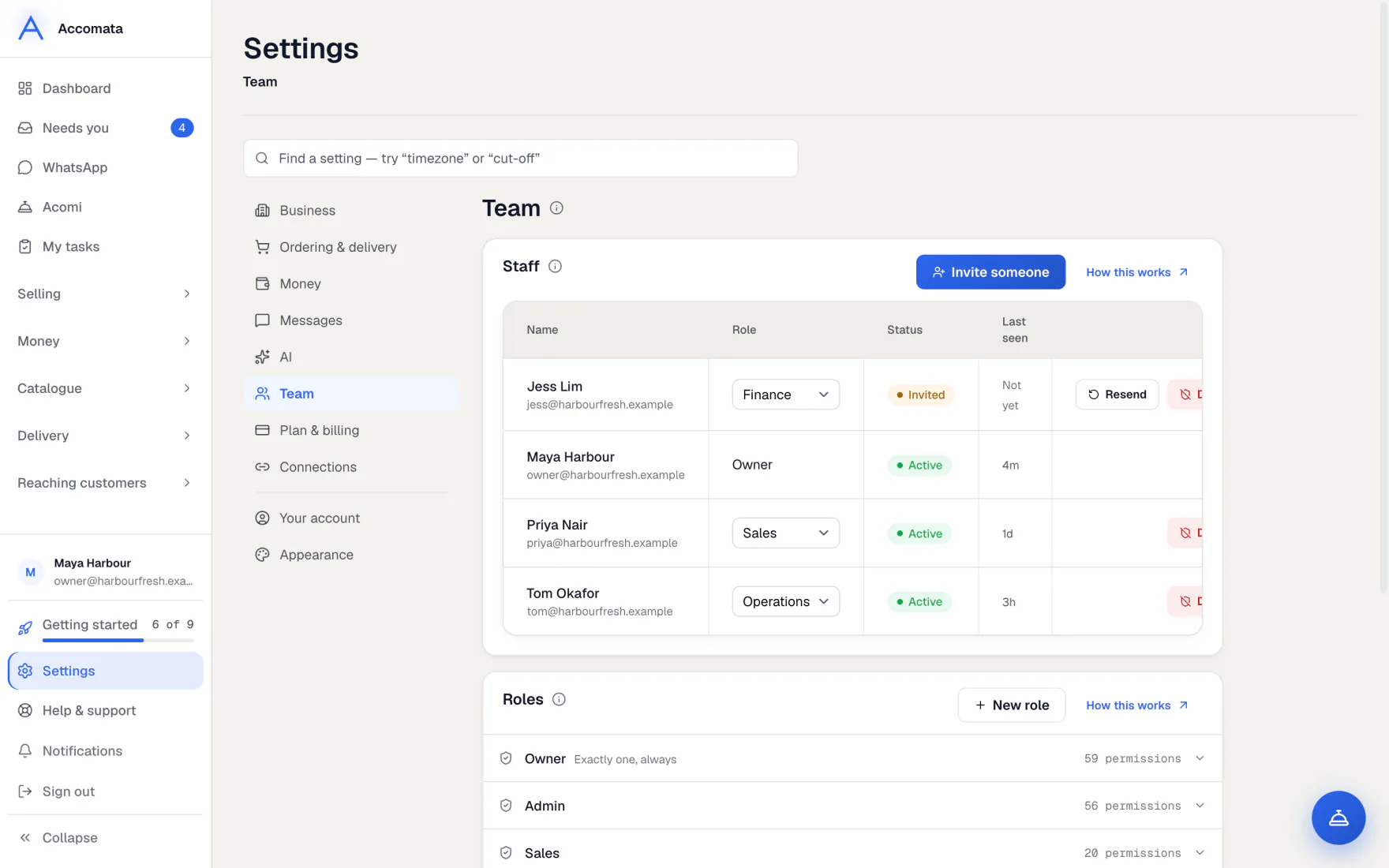
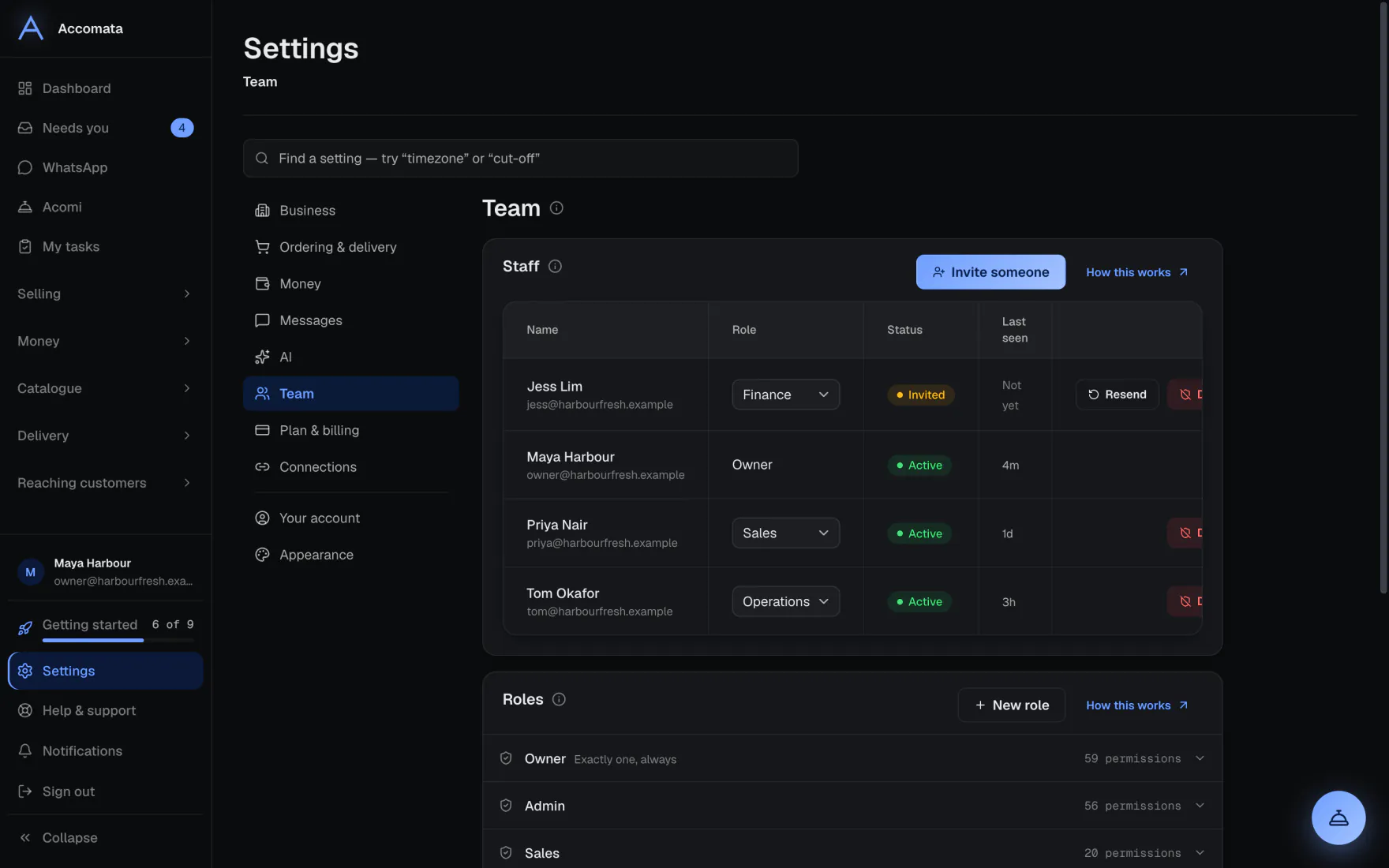
Each person on your team gets their own sign-in and a role. The role decides what they can see and do. Screens they can’t use leave their sidebar.
There are eight ready-made roles: Owner, Admin, Sales, Operations, Finance, Catalogue, Marketing and Viewer. You can also make your own.
How to do it
Invite a staff member
- Open Settings → Team → Staff and press Invite a staff member.
- Type their name and email, and choose a role.
- Press Send invite. They get an email and choose their own password.
No email for them?
Choose Set a password now instead. The password is shown once, for you to pass on.
Make your own role
- Open Settings → Team → Roles.
- Press New role and give it a name.
- Choose what the role may see and do, area by area, then press Create role.
- Give it to people on the Staff card.
What if…
What if someone leaves?
Deactivate them on the Staff card. They can no longer sign in, and their history stays.
What if you want to know who changed what?
Open Settings → Team → Activity log.
What if a staff member sees “Not open to you”?
Their role doesn’t include that screen. They are told to ask the owner, who can change the role.
Common questions
Can staff see money?
Only roles that include money see what customers owe, invoices and payments.
Can two people work at once?
Yes. Screens update live, so everyone sees changes as they happen.
Does hiding a screen in my sidebar change anyone’s access?
No. Settings → Appearance only changes your own sidebar. Access comes from roles.
Still stuck?
A person at Accomata reads every email and replies. Tell us what you were doing and what you saw.