Orders and the seven steps
What it does
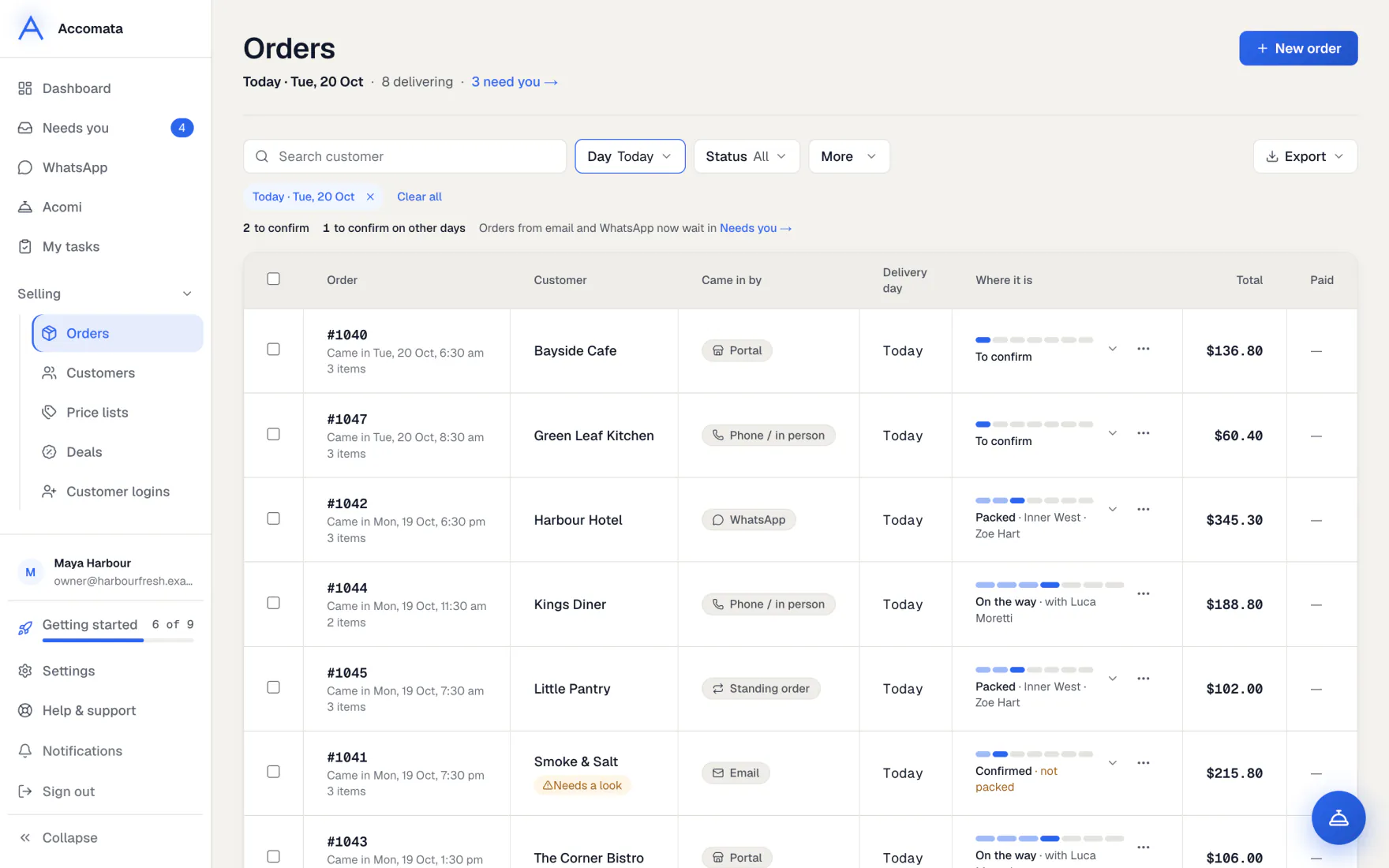
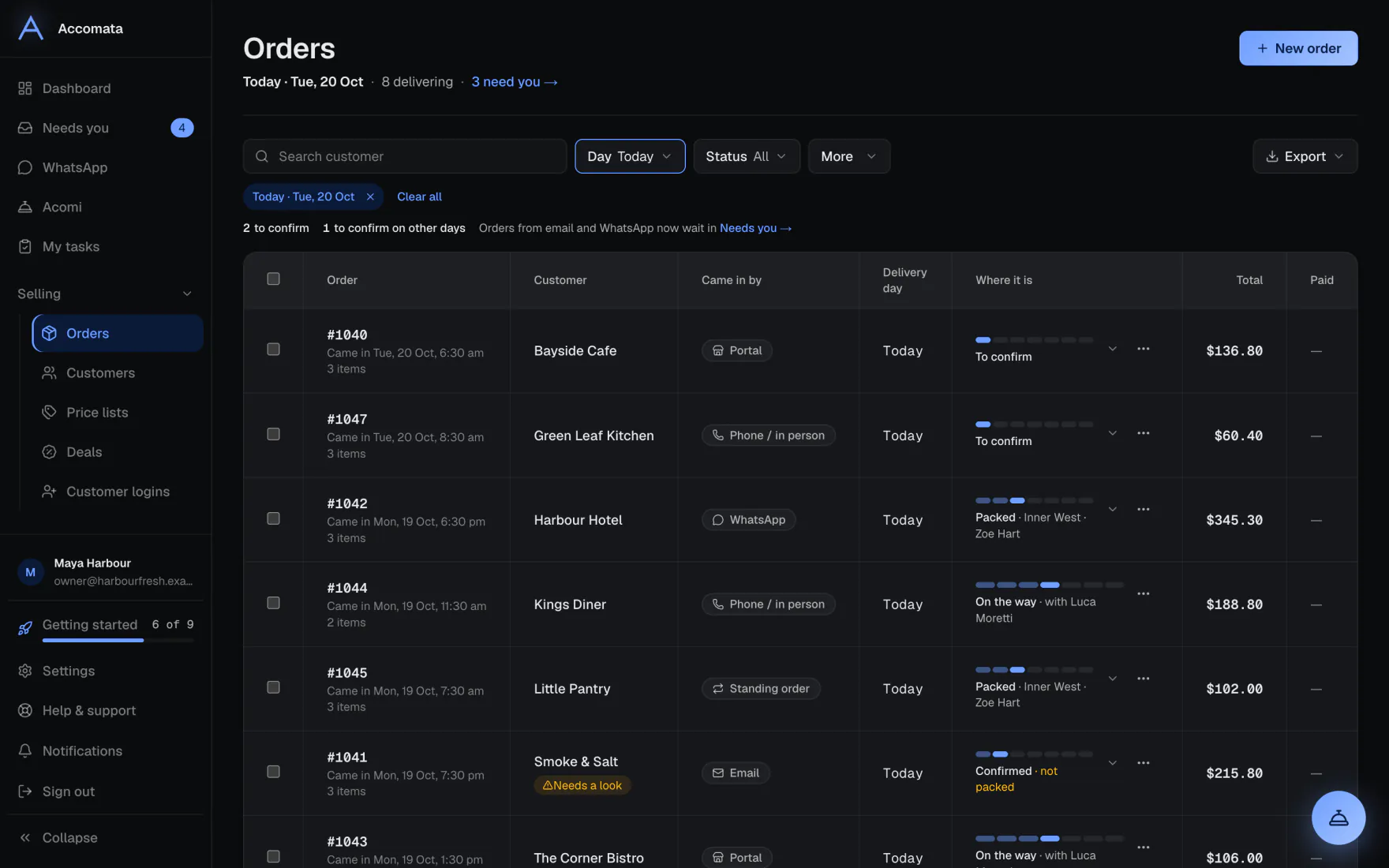
Every order lands in one place, however it came in: your customer portal, email, WhatsApp, QuickBooks, a standing order, or one you typed in yourself.
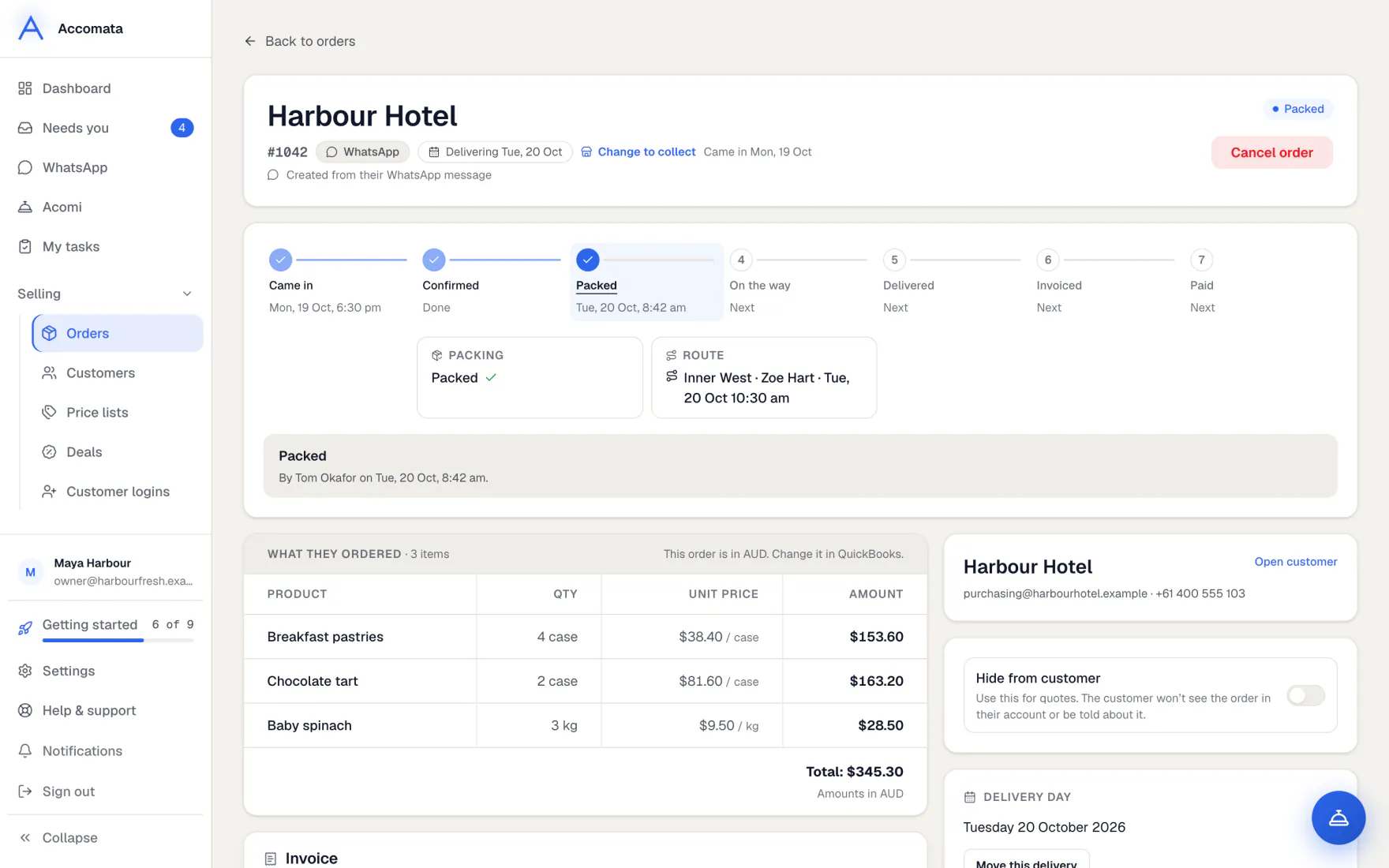
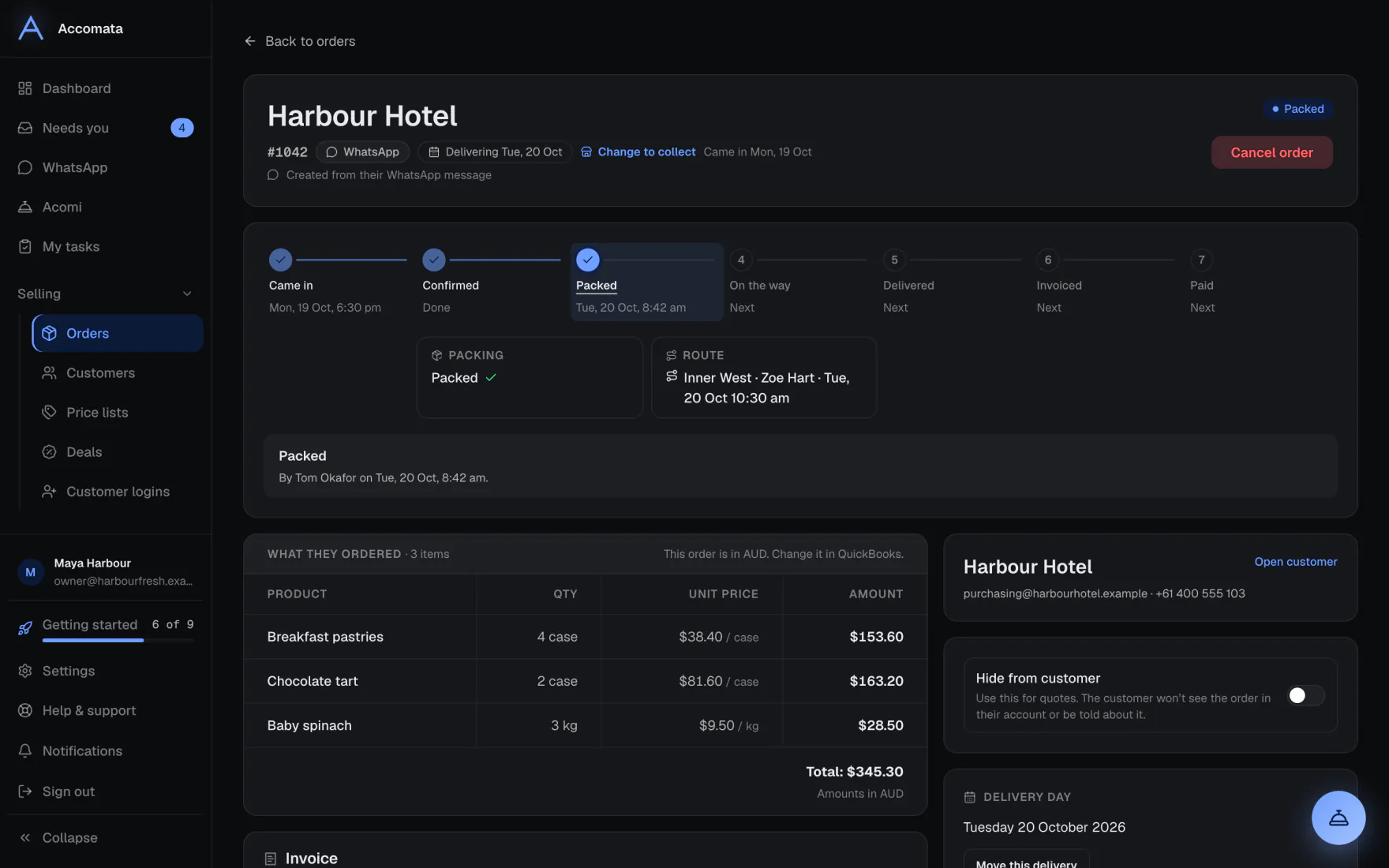
Each order goes through seven steps: Came in → Confirmed → Packed → On the way → Delivered → Invoiced → Paid. The order page shows where it is and the next step, with the button that does it.
How to do it
Find the orders you want
- Open Orders. It opens on today’s deliveries, unless you chose another view in Settings → Appearance.
- Use Day ▾ to pick Today, Tomorrow, This week, your own dates or All dates. Switch Show by to see the day orders came in instead.
- Use Status ▾ to see one step, such as To confirm or On the way.
- Use More ▾ to filter by how orders came in, or to group them by customer.
- Remove a filter with the ✕ on its chip, or press Clear all.
When a day has no orders
If the day you picked is empty, the list moves to the nearest day with orders and says so. A button lets you show your own day anyway.
Confirm orders
- Pick Status ▾ → To confirm, or press the N to confirm hint.
- Open an order to look it over, then press Confirm order.
- To confirm several at once, tick them and press Confirm in the bar at the bottom.
Cancelling asks first
Cancelling always asks you to be sure, because the customer is told.
Type in an order yourself
For an order taken on the phone or at the counter.
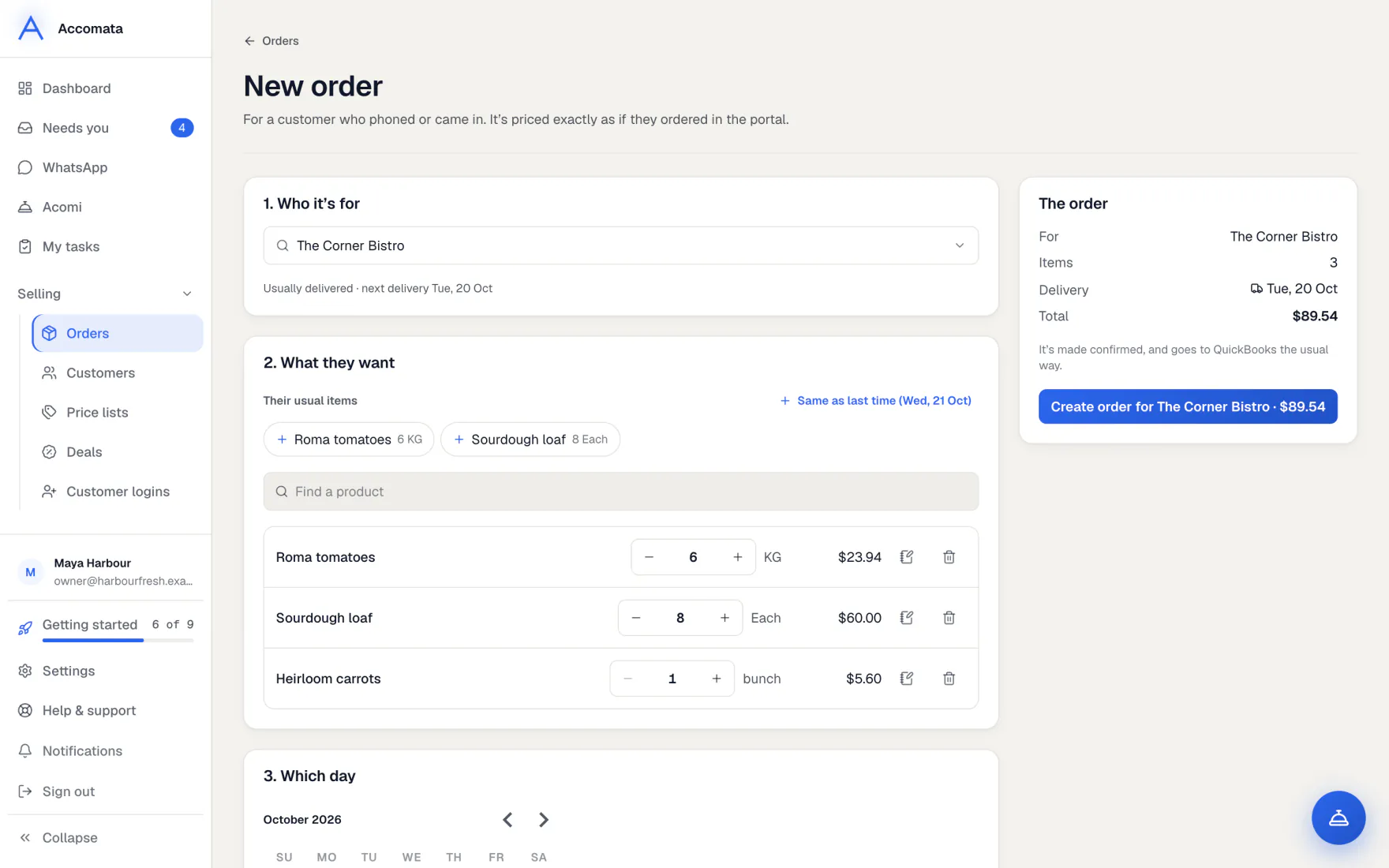
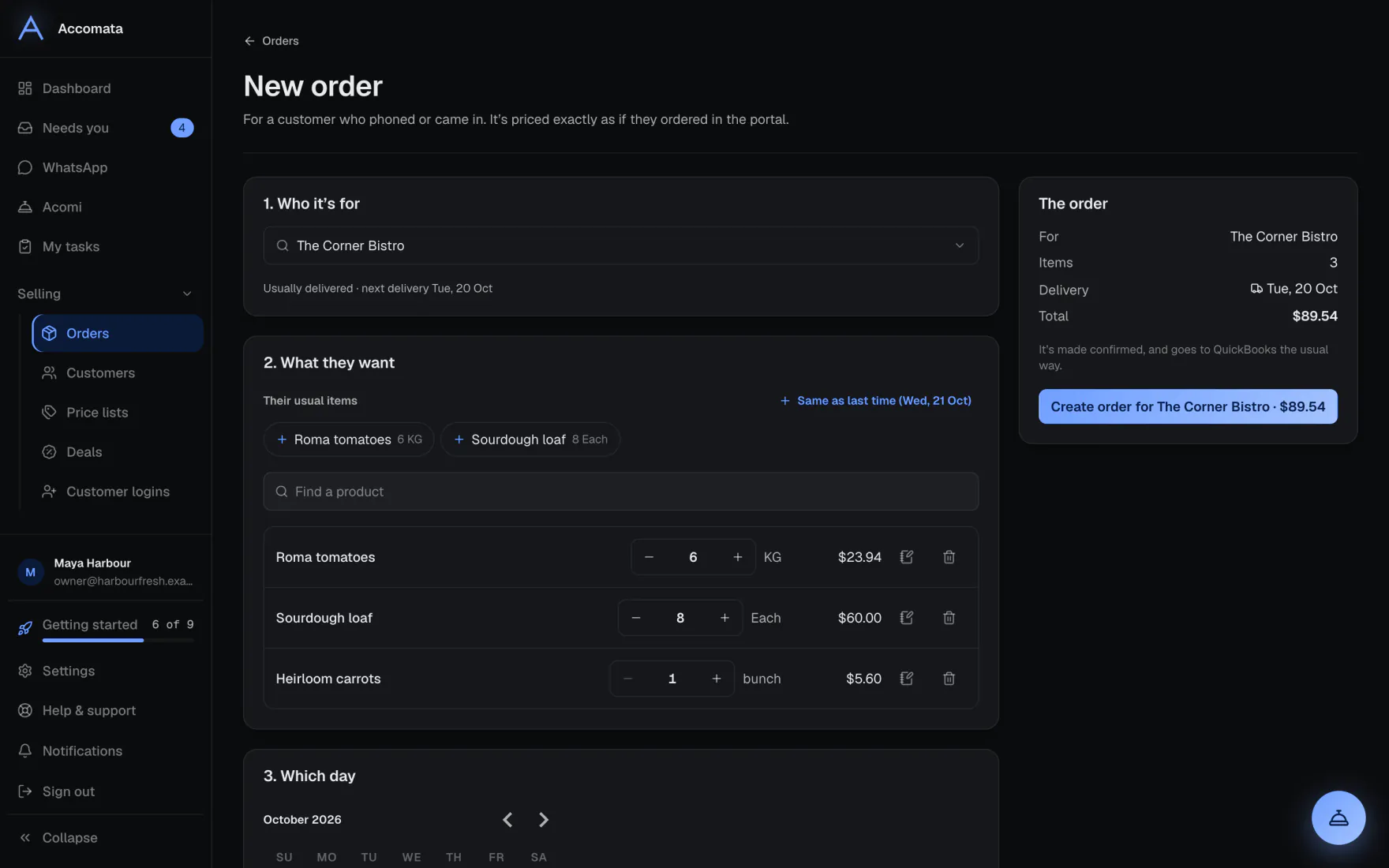
- Press New order on the Orders page.
- Pick the customer. Their usual items and last order are offered.
- Add products, choose the day, and choose delivery or collect.
- Add a note if you need one, then press Create order.
Work from the order page
- Open an order. The seven steps across the top show where it is.
- Press the next step’s button, such as Pack it, Put on a route or Invoice now.
- Use Move this delivery to change the day. The customer sees that you moved it.
- Use Edit order to change items. The estimate in QuickBooks is updated for you.
- See What they sent for the email or WhatsApp messages the order was read from.
What if…
What if a customer wants to change an order?
They can change it themselves for a set time after placing it. You choose how long in Settings → Ordering & delivery → Order editing. After that, you edit it for them.
What if the customer will collect instead?
On the order page press Change to collect. Pack & deliver lists it under customers collecting, with Mark collected.
What if the order shows “Not in QuickBooks”?
The estimate couldn’t be made. Press Retry all on the Orders page. See QuickBooks.
What if you want a list on paper or in Excel?
Press Export ▾ and pick CSV, Excel or PDF. It exports the ticked orders, or else the page you see.
Common questions
What does “Came in by” mean?
Where the order came from: Portal, Email, WhatsApp, QuickBooks, You, Standing order, or Phone / in person.
Is the estimate made when the order is placed or when I confirm it?
When it is placed. Confirming moves the order to its next step.
Can I hide an order from the customer?
Yes. On the order page, press Hide from customer. It is useful for an order typed straight into QuickBooks.
Who can confirm or cancel orders?
Anyone whose role includes changing an order’s status. See Your team and permissions.
Can I send an order as a quote first?
Yes. On the order page press Send as quote. The customer approves it in their portal. See Price lists, deals and quotes.
Still stuck?
A person at Accomata reads every email and replies. Tell us what you were doing and what you saw.