Notifications
What it does
The bell at the top of the app opens your inbox of notices, such as a new order, a payment or a route that finished.
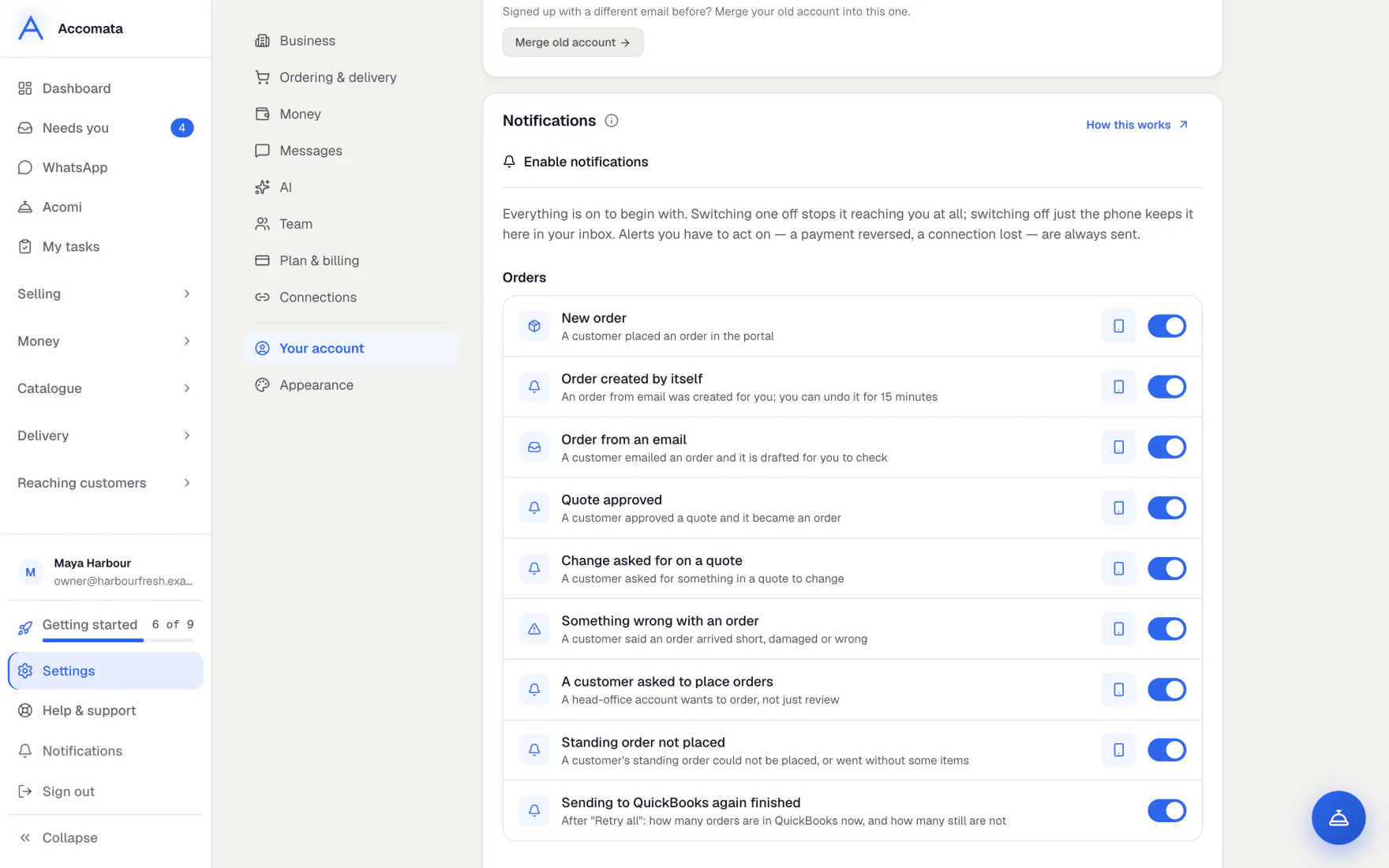
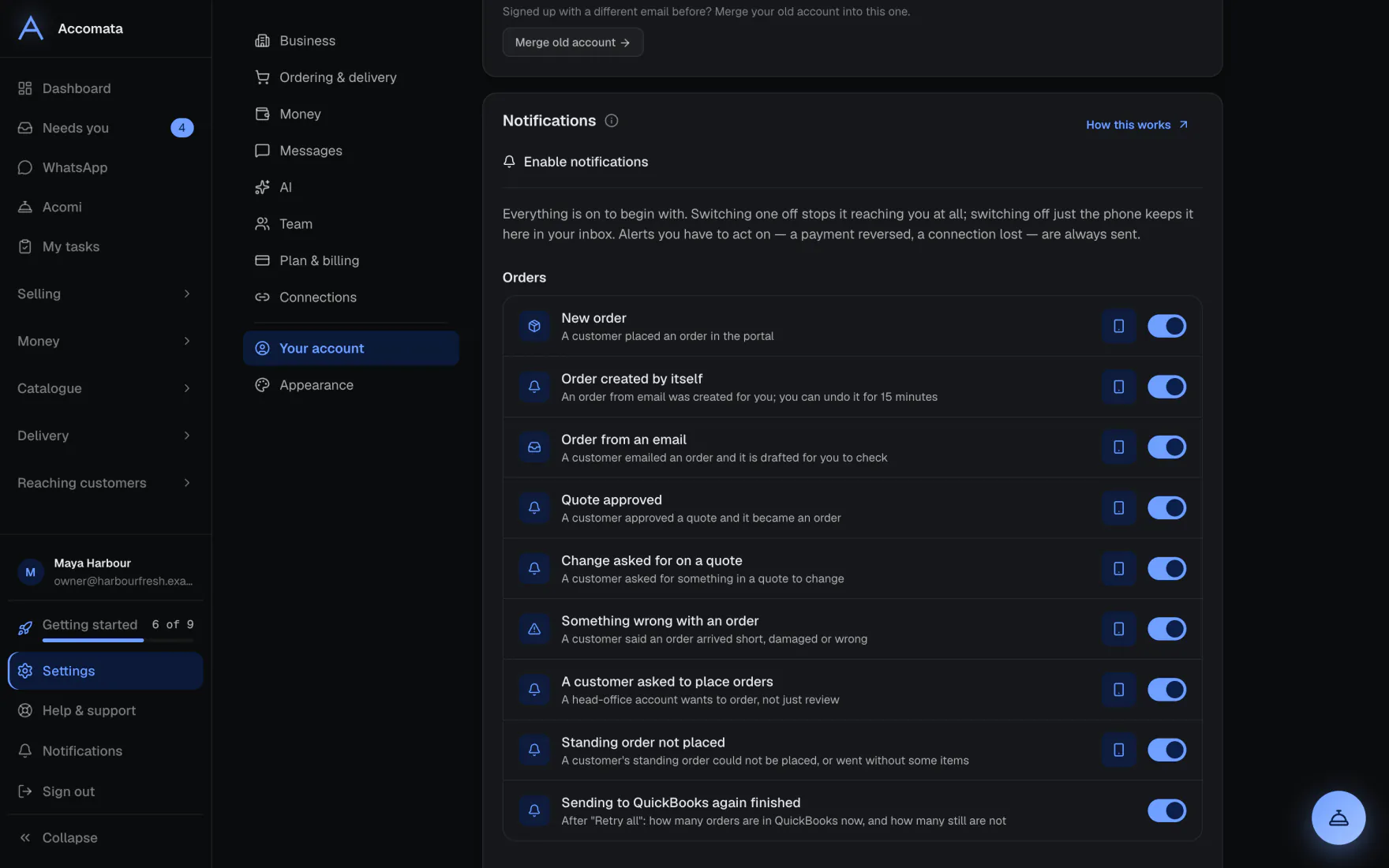
In Settings → Your account → Notifications you choose which notices you get, and which also reach your phone or browser when the app is closed.
How to do it
Choose what reaches you
- Open Settings → Your account → Notifications.
- Notices are grouped: Orders, Invoices and payments, Delivery, Customers, Assistants and System.
- Switch one off to stop it altogether. Switch off just the phone to keep it in your inbox only.
Get notices on this device
- Press Enable notifications and allow them when your browser asks.
- Do this on each computer or phone you use.
What if…
What if a notice can’t be switched off?
Alerts you have to act on, such as a payment reversed or QuickBooks disconnected, are always sent. They aren’t in the list.
What if notices don’t reach your phone?
Check that notifications are allowed for this site in your phone’s settings, then enable them again.
Common questions
Are my settings shared with my team?
No. Notifications are set per person.
Is anything lost if I switch off the phone?
No. Everything you are sent is kept in your inbox either way.
Still stuck?
A person at Accomata reads every email and replies. Tell us what you were doing and what you saw.