Delivery day, routes, drivers, vans and places
What it does
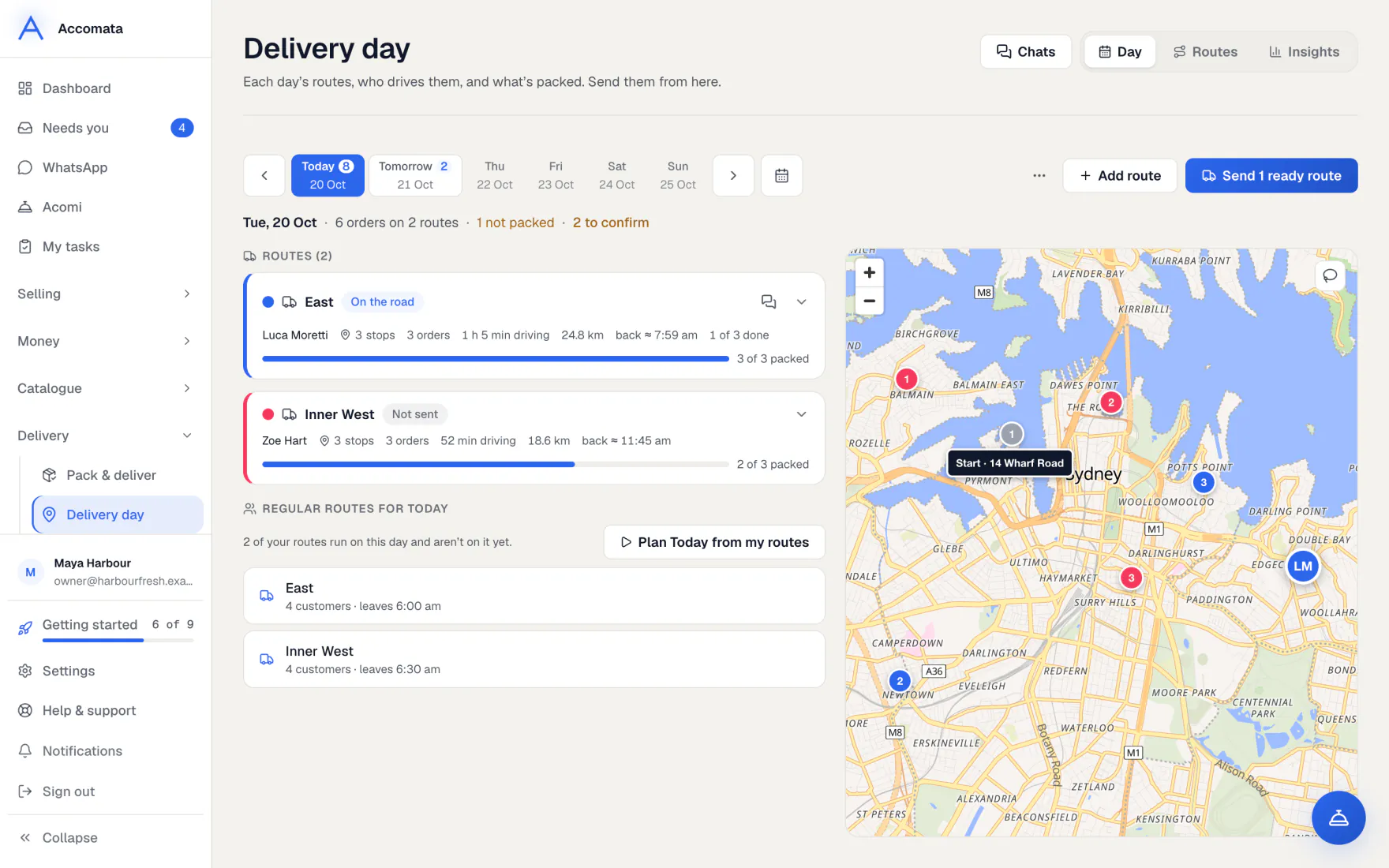
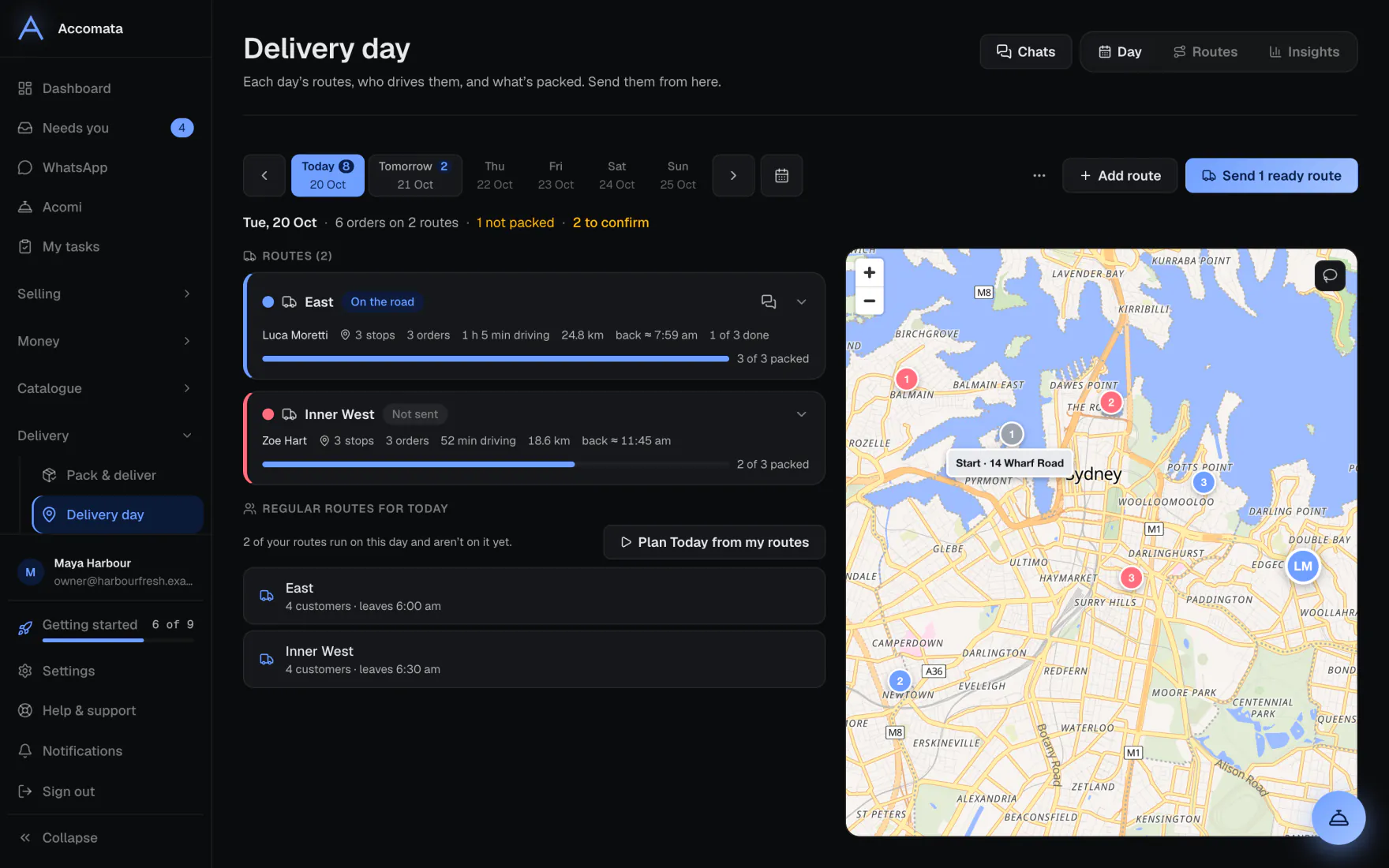
Delivery day shows each route for the day, with its driver, stops and how much is packed. You set up your regular routes once, and each day they fill with that day’s orders.
When the orders are packed, you send the routes. Each driver gets theirs on their phone, customers get a tracking link, and every delivery comes back with proof.
How to do it
Set up delivery once
- Add your business address in Settings → Business. Routes start there.
- Set your delivery days, cut-off and minimum order in Settings → Ordering & delivery → Delivery days.
- Add your drivers in Drivers, and your vans in Vans if you want to track loads.
- On Delivery day → Routes, make your regular routes: their days, start place and usual driver.
Plan and send the day
- Open Delivery day and pick the day.
- Press Plan the day from my routes, or + Add route for a new one.
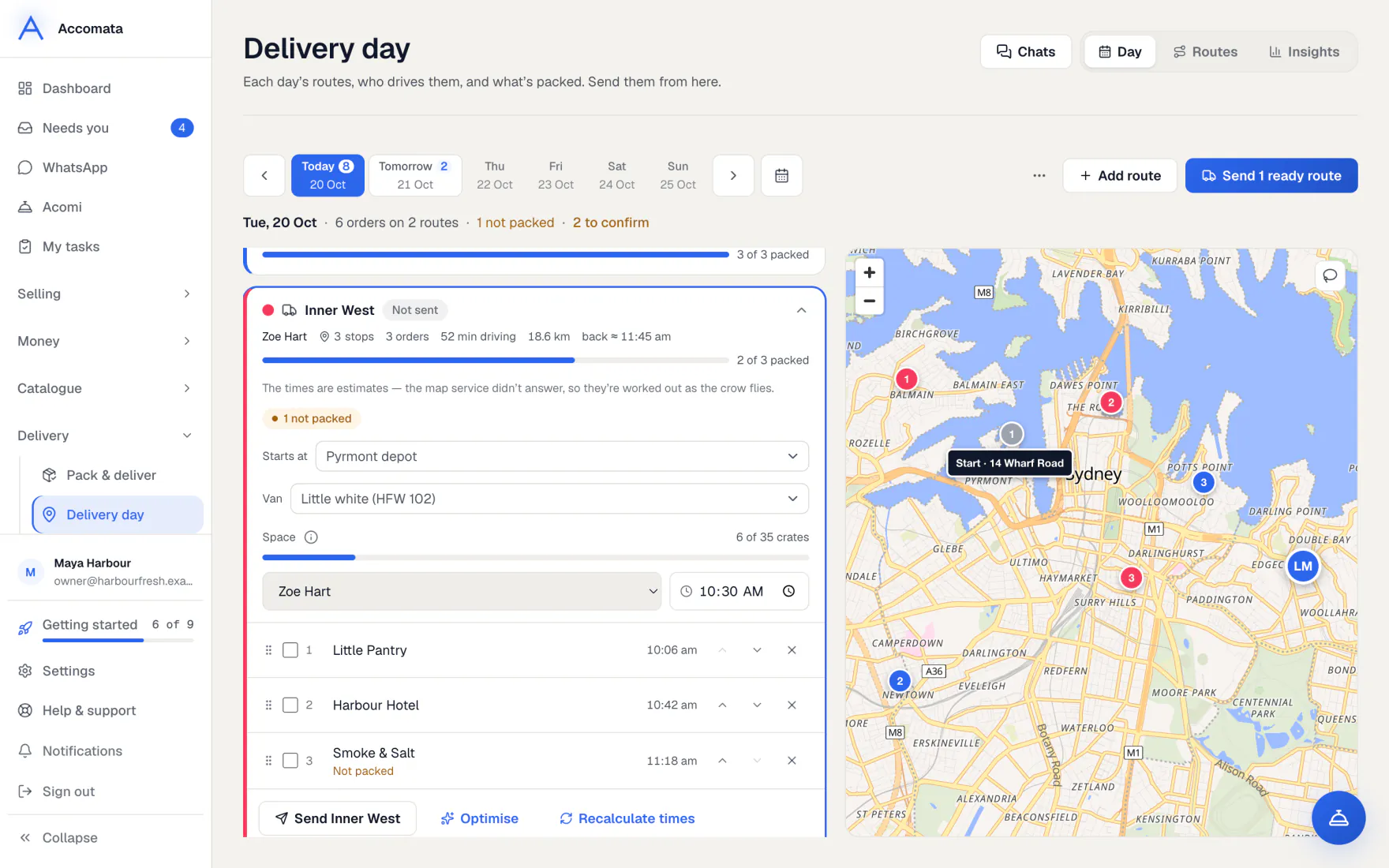
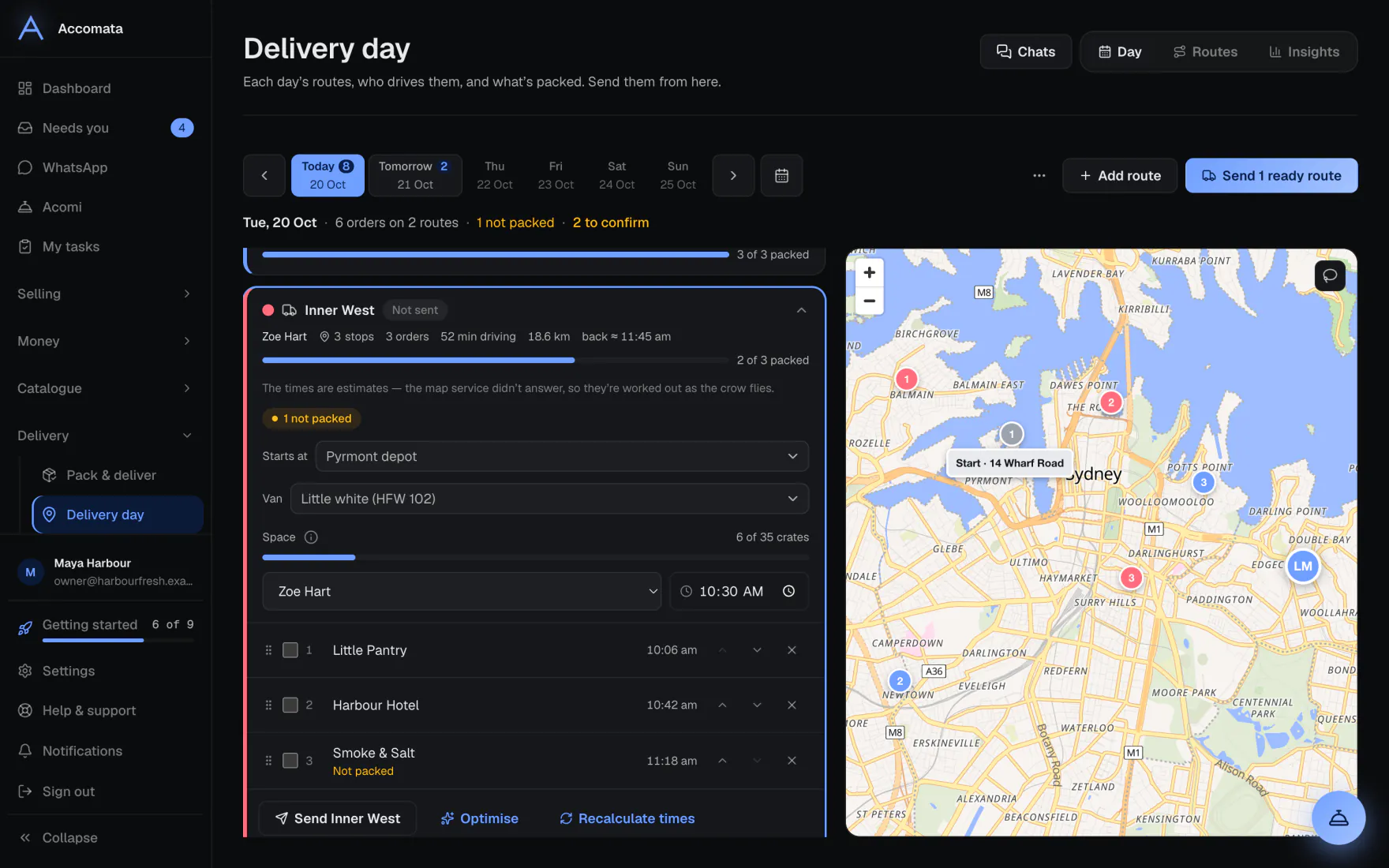
- Choose a driver for each route. Move or reorder stops by dragging, or tick them and press Move to….
- Press Optimise to put the stops in the best order.
- When the orders are packed, press Send the ready routes.
Draw around the stops
On the map, draw around a group of stops to tick them all at once, then move them together.
During the day
- Follow each van on the map while its driver has the route open.
- Add a stop to a route that is already out. It appears on the driver’s list straight away.
- Use Hand over to give a route to another driver. Both drivers are told.
- If a van breaks down, press Van broke down? to move its stops.
What if…
What if an order is on no route?
It is listed under Not on a route. Add it to a route, or make a route from those orders.
What if a stop is very far from the start?
It is usually a wrong pin. It is left out of the route and listed with Fix the address.
What if you need proof for a delivery?
Open Done routes. Each route keeps its stops, photos, signatures and notes, locked. You can add a correction, and download a PDF or Excel copy.
What if orders come after the cut-off?
A card lists them. Keep them all for the day, or decide one by one. See Ordering closed.
Common questions
What do drivers have to give at each stop?
You decide in Settings → Ordering & delivery → Proof of delivery: a photo or a note, who took it, or where it was left.
What are Places?
Your depots, warehouses, suppliers and pickup points. A route can start or end at one.
Do customers see where the van is?
Yes. When their delivery is on its way they get a tracking link. It works without signing in.
Can a driver have two routes at once?
No. A driver who is already out on a route can’t be given another until they finish it, so nobody has two lists.
How do drivers get the app?
There is nothing to install. Copy the driver sign-in link on Drivers and send it to them. See For your drivers.
Still stuck?
A person at Accomata reads every email and replies. Tell us what you were doing and what you saw.