Accounts on hold
What it does
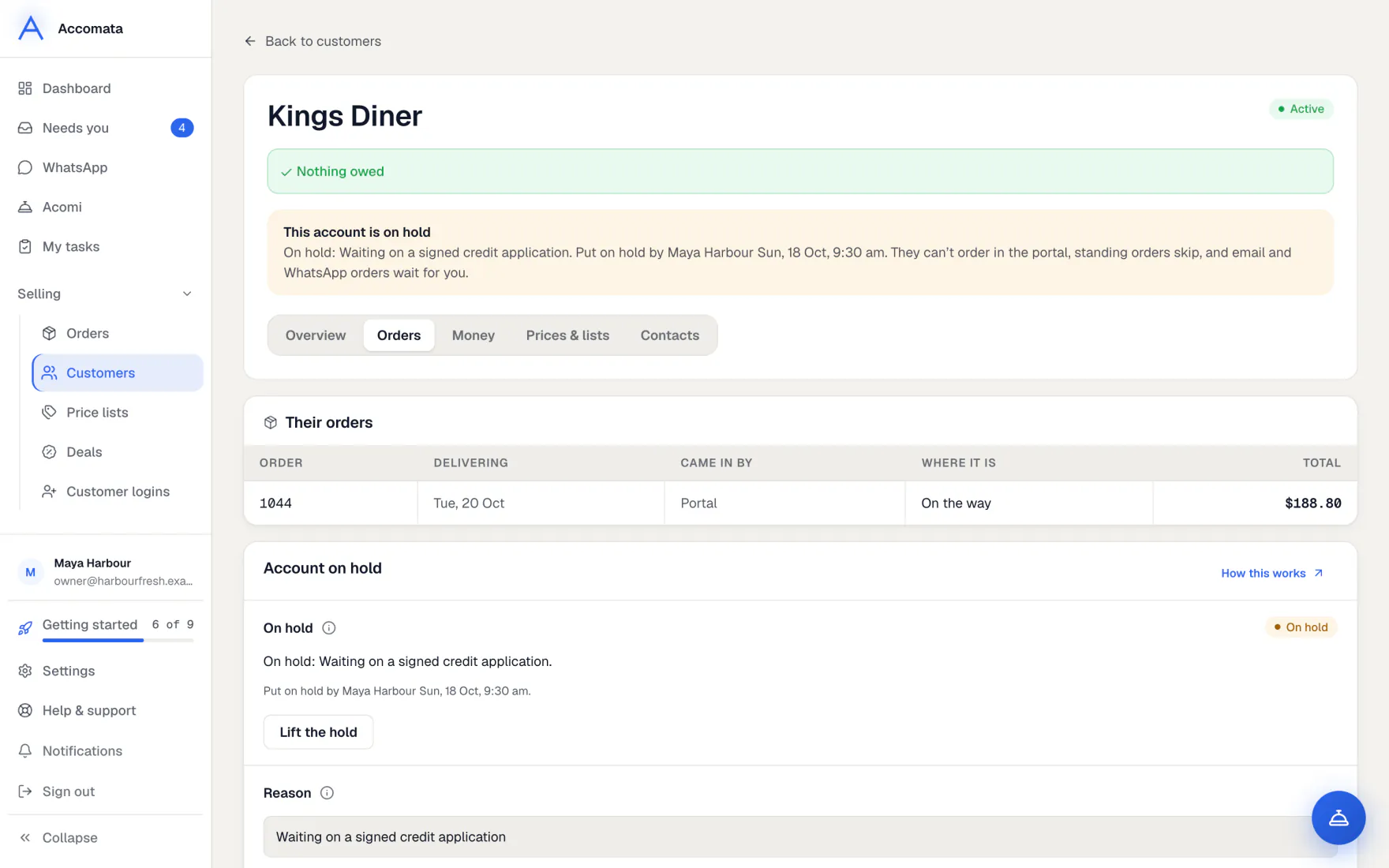
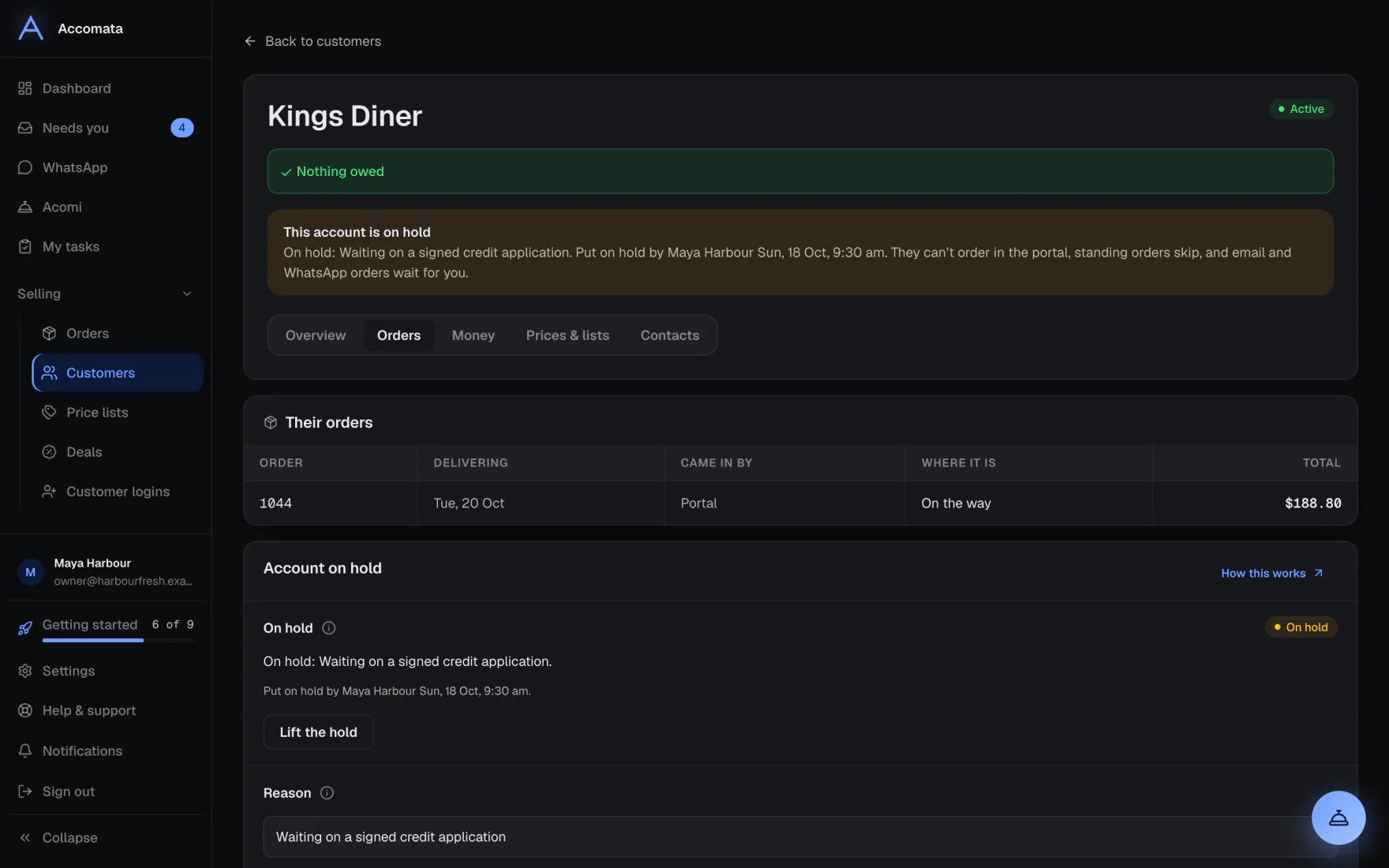
Putting an account on hold stops that customer placing orders until you lift it. You can do it by hand, with a reason, or let the app do it while an invoice is more than a set number of days overdue.
A hold on a head office covers all its branches. A hold on a branch never stops the head office. You and your staff can still create an order after a Create anyway? question.
How to do it
Put an account on hold by hand
- Open the customer’s page and go to the Orders tab.
- Press Put on hold and type the reason.
- Tick Show the reason to the customer if you want them to read it.
- To end it, press Lift.
Hold accounts automatically
- Open Settings → Money → Accounts on hold.
- Switch on automatic holds and set how many days overdue an invoice must be.
- The hold lifts by itself the moment the invoice is paid.
Keep one customer off automatic holds
On their Orders tab, choose Never put them on hold by itself.
What if…
What if the customer tries to order?
They see that their account is on hold and can’t place the order. If they owe money and card payments are set up, they get a Pay now button.
What if a standing order is due for a held account?
It is not placed. Needs you tells you why.
What if you want to see every held account?
Open Customers and pick Show ▾ → On hold. Getting paid marks them with an On hold chip too.
Common questions
Who can put an account on hold?
Anyone whose role can change customers. Automatic holds are set by someone who manages payments.
Can staff without money access see why an account is on hold?
They see that it is on hold. An automatic hold’s reason is about money, so only people who can see money read it.
Do reminders still go to a held customer?
No. “Time to order” reminders skip held accounts.
Still stuck?
A person at Accomata reads every email and replies. Tell us what you were doing and what you saw.